open-bsp-api
Health Gecti
- License — License: Unlicense
- Description — Repository has a description
- Active repo — Last push 0 days ago
- Community trust — 280 GitHub stars
Code Uyari
- network request — Outbound network request in plugin/auth.ts
Permissions Gecti
- Permissions — No dangerous permissions requested
This server is an open-source WhatsApp Business platform that manages messaging via the official WhatsApp API. It supports multi-tenant environments, external integrations, and features built-in tools to host or connect to AI agents.
Security Assessment
Overall Risk: Medium. The project does not request dangerous permissions or execute shell commands, and no hardcoded secrets were detected. However, it inherently processes highly sensitive data, including private business conversations and proprietary API credentials. The scanner flagged outbound network requests in the authentication (`plugin/auth.ts`) and server (`plugin/server.ts`) modules. While expected for an API that communicates with Meta's WhatsApp servers and Supabase, developers must audit these endpoints to ensure data isn't being exfiltrated to unauthorized third parties.
Quality Assessment
The project is highly active, with its most recent push occurring today, and appears production-ready, as noted by its commercial deployments. It has solid community traction for a specialized tool, boasting over 260 GitHub stars. Furthermore, it is fully open-source under the highly permissive Unlicense, which imposes no restrictions on usage or modification.
Verdict
Use with caution; while it is actively maintained and licensed properly, developers should self-host it securely and review the network code to protect the sensitive credentials and conversations flowing through the platform.
Open-source WhatsApp Business platform
OpenBSP API
Open-source WhatsApp Business Platform
Self-hostable, multi-tenant, AI-agent ready. Built with Deno 🦕 and Postgres 🐘, powered by Supabase ⚡





OpenBSP is designed for both individual businesses and service providers. You
can use it to manage your own WhatsApp messaging, or leverage its features to
become a
Meta Business Partner
and offer WhatsApp messaging services to other organizations.
User Interface
For a complete web-based interface to manage conversations check out the
companion project:
🖥️ OpenBSP UI — A modern,
responsive web interface built with React and Tailwind.
https://github.com/user-attachments/assets/1ef30dde-9de1-4f5a-856a-db34ca2e3063
Description
OpenBSP API is a multi-tenant platform that connects to the official WhatsApp
API to receive and send messages, storing them in a Supabase-backed database.
Core features
- 🤝 Meta Business Partner ready: Built to facilitate the transition to an
official solution provider. - 🔗 WhatsApp account Coexistence: Connect existing WhatsApp Business
accounts via
Embedded Signup. - 🏢 Multi-tenant architecture: Native support for multiple organizations
with isolated environments. - 🔌 External integration: Seamlessly connect with external services using
webhooks and the API.
AI agents
Create lightweight agents or connect to external, more advanced agents using
different protocols like a2a and chat-completions. Lightweight agents can
use built-in tools:
- MCP client
- SQL client
- HTTP client
- Calculator
[!IMPORTANT]
This project prioritizes a decoupled architecture between communication and
agent logic. Advanced agents built with frameworks like the OpenAI SDK or
Google ADK should be deployed as external services.
Media processing
Interpret and extract information from media and document files, including:
- Audio
- Images
- Video
- Other text-based documents (CSV, HTML, TXT, etc.)
Claude Code plugin
The OpenBSP plugin gives Claude Code full API access and optionally bridges
WhatsApp messages in real-time. Claude can query contacts, conversations,
templates, and more via the query tool, and reply to WhatsApp messages via thereply tool.
Install the plugin:
/plugin marketplace add matiasbattocchia/open-bsp-api
/plugin install openbsp@matiasbattocchia-open-bsp-api
On first run, a browser opens for Google sign-in (same account as the web UI).
Then configure allowed contacts for the WhatsApp channel:
/openbsp:config contacts add 5491155551234
No contacts are forwarded until explicitly added (secure by default). API access
works regardless of channel configuration. Seeplugin/README.md for full documentation.
MCP server
The mcp Edge Function exposes an MCP server
over SSE, giving agentic access to the WhatsApp API from clients like Claude
Desktop or other agent platforms.
For the hosted version at web.openbsp.dev, the MCP
server URL is:
https://nheelwshzbgenpavwhcy.supabase.co/functions/v1/mcp
Authentication uses the Authorization: Bearer <API_KEY> header. Get it from
OpenBSP > Settings > API Keys.
Optionally, Allowed-Contacts and Allowed-Accounts headers restrict which
phone numbers the key can access.
Claude Desktop configuration (claude_desktop_config.json):
{
  "mcpServers": {
    "openbsp": {
      "url": "https://nheelwshzbgenpavwhcy.supabase.co/functions/v1/mcp",
      "headers": {
        "Authorization": "Bearer <API_KEY>"
      }
    }
  }
}
Available tools:
| Tool | Description |
|---|---|
list_accounts |
List connected WhatsApp accounts |
list_conversations |
Get recent active conversations |
fetch_conversation |
Fetch messages and service window status for a contact |
search_contacts |
Find contacts by name or phone number |
send_message |
Send a text or template message (enforces 24h service window) |
list_templates |
List available WhatsApp templates |
fetch_template |
Fetch details of a specific template |
Demo
A managed instance is available at
web.openbsp.dev — same codebase as this repo,
running on Supabase. Sign up with a Google or GitHub account.
Quotas
| Resource | Included |
|---|---|
| Messages | 5,000 / month |
| Conversations | Unlimited |
| Storage | 1 GB |
| AI Credits | $1.00 (one-time) |
AI Credits apply only when agents use the built-in LLM gateway. Configuring an
agent with your own provider API key (AgentExtra.api_key) bypasses credit
consumption.
Data portability
Your data is yours. You can export your organization's data from the hosted
instance and load it into a self-hosted deployment — both run the same schema,
and all data is scoped by organization with no cross-org dependencies.
Self-host deployment
[!NOTE]
Deploy your own instance in under 15 minutes — no local environment
required.
- Fork this repo (1
min) - Create a Supabase project (5 min)
- Connect the project to your fork via the Supabase GitHub Integration (5 min)
You are live! 🚀 Pushes to your default branch will automatically deploy
database migrations and Edge Functions.
Connect via Supabase GitHub Integration
In the Supabase Dashboard:
- Go to Project Settings > Integrations
- Under GitHub Integration, click Authorize GitHub
- On the GitHub authorization page, click Authorize Supabase
- Back on the Integrations page, choose your forked open-bsp-api repository
- Set the Working directory to
.(thesupabase/folder lives at the
repo root) - Set the Production branch to
main - Configure the remaining options as needed
- Click Enable integration
The repository also ships with a Release GitHub Actions workflow that performs
the same deployment from inside CI. The workflow is set to workflow_dispatch:
only — it does not run on push. This path is optional and useful if you
mirror this repo to another host (e.g. GitLab) or prefer keeping deployments
self-contained in GitHub Actions instead of relying on Supabase's integration.
Secrets
[!TIP]
Create the secrets at GitHub > Repository > Settings ⚙️ > Secrets and
variables *️⃣ > Actions > Secrets
- SUPABASE_ACCESS_TOKEN: A
personal access token - SUPABASE_DB_PASSWORD
- SUPABASE_SERVICE_ROLE_KEY: you can use a secret key instead of the legacy
service role key
Variables
[!TIP]
Create the variables at GitHub > Repository > Settings ⚙️ > Secrets and
variables *️⃣ > Actions > Variables
- SUPABASE_PROJECT_ID
- SUPABASE_SESSION_POOLER_HOST: it is like
aws-0-us-east-1.pooler.supabase.com
Release
[!TIP]
Go to GitHub > Repository > Actions ▶️ > Release
- Click Run workflow
WhatsApp integration
To connect your OpenBSP project to the WhatsApp API, you'll need to setup a Meta
App with the WhatsApp product and configure the following Edge Functions
secrets. You can set these up in two ways:
- Direct configuration: Add them directly in your Supabase dashboard at
Supabase > Project > Edge Functions > Secrets. - GitHub Actions: Set them as GitHub Actions secrets in your repository
settings and re-run the Release action to automatically deploy them.
Secrets
- META_SYSTEM_USER_ID
- META_SYSTEM_USER_ACCESS_TOKEN
- META_APP_ID
- META_APP_SECRET
- WHATSAPP_VERIFY_TOKEN
Follow these steps to obtain the required credentials.
Step 0: OverviewThere is quiet a Meta nomenclature of entities that you might want to get in
order to not to get lost in the platform.
- Business profile - This is the top-level entity, represents a business.
Has users and assets. - User - Real or system users. System users can have access tokens. Users
belong to a business portfolio and can have assigned assets. - Asset - WhatsApp accounts, Instagram accounts, Meta apps, among others.
Assets belong to a business portfolio and are assigned to users. - App - An asset that integrates Meta products such as the WhatsApp Cloud
API. - WhatsApp Business Account (WABA) - A WhatsApp account asset, can have many
phone numbers. - Phone number - A registered phone number within the WhatsApp Cloud API.
Belongs to a WABA.
Step 1: Create a Meta app (skip if you already have one)For more details, refer to
Cloud API overview.
- Navigate to My Apps
- Click Create App
- Select the following options:
- Use case: Other
- App type: Business
- Add the WhatsApp product to your app
- Click Add API
- Disregard the screen that appears next and proceed to the next step
- Get into the Meta Business Suite. If you
have multiple portfolios, select the one associated with your app - Go to Settings > Users > System users
- Add an admin system user
- Copy the ID → META_SYSTEM_USER_ID
- Assign your app to the user with full control permissions
- Generate a token with these permissions:
business_managementwhatsapp_business_messagingwhatsapp_business_management
- Copy the Access Token → META_SYSTEM_USER_ACCESS_TOKEN
Step 3: Get the app credentialsFor detailed instructions on system user setup, refer to the
WhatsApp Business Management API documentation.
- Navigate to My Apps > App Dashboard
- Go to App settings > Basic
- Copy the following values:
- App ID → META_APP_ID
- App secret → META_APP_SECRET
Step 4: Configure the WhatsApp Business Account webhookMultiple Meta apps are supported by separating values with
|(pipe)
characters. For example:META_APP_ID=app_id_1|app_id_2andMETA_APP_SECRET=app_secret_1|app_secret_2.
Part A
- Within the App Dashboard
- Go to WhatsApp > Configuration
- Set the Callback URL to:
https://{SUPABASE_PROJECT_ID}.supabase.co/functions/v1/whatsapp-webhook - Choose a secure token for WHATSAPP_VERIFY_TOKEN → Set it as the Verify
token, but do not click Verify and save yet! - Ensure your Edge Functions environment variables are up-to-date
- If you configured secrets directly in your Supabase dashboard, no further
action is needed at this point - If you set secrets via GitHub Actions, re-run the Release action now to
deploy them to your Edge Functions
- If you configured secrets directly in your Supabase dashboard, no further
- Click Verify and save
- Disregard the screen that appears next and proceed to the next step
Multiple Meta apps are supported by appending the query param
?app_id={META_APP_ID}to the callback URL. For example:https://{SUPABASE_PROJECT_ID}.supabase.co/functions/v1/whatsapp-webhook?app_id=app_id_2.
Part B
- Within the App Dashboard
- Go to WhatsApp > Configuration
- Subscribe to the following Webhook fields:
account_updatemessageshistorysmb_app_state_syncsmb_message_echoes
Step 5: Add a phone numberOptionally, test the configuration so far. In the
messagessubscription
section, click Test. You should see the request in Supabase > Project >
Edge Functions > Functions > whatsapp-webhook > Logs.You might observe an error in the logs. This is an expected outcome at this
stage; the simple fact that a log entry appears confirms that the webhook is
successfully receiving events.
If you decide to add the test number,
- Within the App Dashboard
- Go to WhatsApp > API Setup
- Click Generate access token (you can't use the one you got from step 2
here) - Copy these values:
- Phone number ID
- WhatsApp Business Account ID
- Select a recipient phone number
- Send messages with the API > Send message
The test number doesn't seem to fully activate to receive messages unless you
send a test message at least once.
In order to add a production number,
- Click Add phone number
- Follow the flow
- Navigate to
WhatsApp Manager - Go to Account tools > Phone numbers
- Copy these values:
- Phone number ID
- WhatsApp Business Account ID
For any number you add
Create an organization if you haven't done that already.
insert into public.organizations (name, extra) values
  ('Default', '{ "response_delay_seconds": 0 }')
;
Note the organization ID.
Register the phone number with your organization in the system.
insert into public.organizations_addresses (address, organization_id, service, extra) values
  ('<Phone number ID>', '<Organization ID>', 'whatsapp', '{ "waba_id": "<WhatsApp Business Account ID>", "phone_number": "<Phone number>" }')
;
Architecture
New to Supabase? In one sentence: it's a hosted Postgres platform that
auto-exposes your tables over a REST and realtime API, runs Deno-based Edge
Functions for server-side logic, and handles auth and file storage on top.
OpenBSP leans heavily on those primitives — most business logic lives as SQL
triggers and Edge Functions, and clients (the web UI, the Claude Code plugin,
custom integrations) talk to Postgres directly through a
Supabase client library
rather than through a separate backend layer.
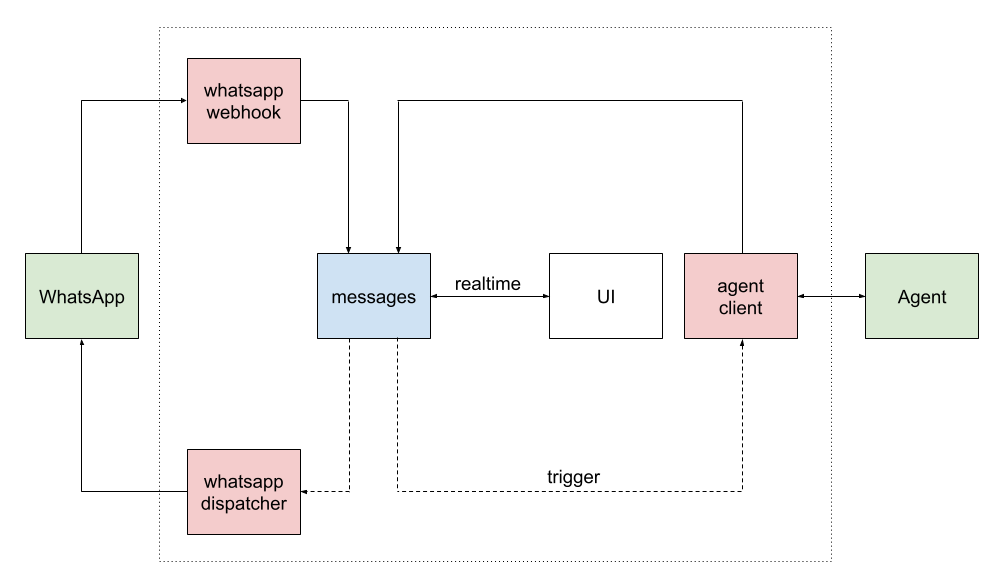
In the image, green boxes are external services, red are Edge Functions and
blue, database tables. White boxes are clients.
The system uses a reactive, function-based architecture:
- A request from the WhatsApp API is received by the
whatsapp-webhook
function. whatsapp-webhookprocesses the incoming message and stores it in themessagestable.- An insert trigger on the
messagestable forwards the message to theagent-clientfunction (incoming trigger). agent-clientbuilds the conversation context and sends a request to an
agent API using the
Chat Completions
format.agent-clientwaits for the agent's response and saves it back to themessagestable.- An outgoing trigger on the
messagestable forwards the new message to thewhatsapp-dispatcherfunction. whatsapp-dispatcherprocesses the message and sends a request to the
WhatsApp API to deliver it.
This event-driven flow ensures that each component is decoupled and scalable.
Edge Functions
whatsapp-webhook: Handles incoming webhook events from the
WhatsApp Cloud API.whatsapp-dispatcher: Sends outbound messages to the WhatsApp Cloud API.whatsapp-manager: Integrates with the
WhatsApp Business Management API
for business and phone number management.
Agent
agent-client: Orchestrates agent interactions, builds conversation context,
and communicates with external agent APIs over
Chat Completions or
A2A protocols.
Database models
- users: Registered user in the application (mapped to Supabase Auth).
- organizations: Tenant entity; holds organization metadata.
- organizations_addresses: An organization's connected addresses per service
— e.g. a WhatsApp phone number. Belongs to anorganization. - contacts: People associated with an
organization— the address-book
entry that groups one or more addresses under a name. - contacts_addresses: Addresses a contact can be reached at (e.g. a phone
number for WhatsApp). An address can exist unlinked to any contact, so
addresses and contacts have independent lifecycles — the sync triggers in this
table manage linking/unlinking and orphan cleanup. - conversations: A conversation between an
organization_addressand acontact_address(orgroup_address) for a given service; belongs to anorganization. - messages: Messages within a
conversation; carry direction, type,
payload, status, and timestamps. - agents: Human or AI agents for an
organization; optionally linked to an
authuser. - api_keys: API access keys scoped to an
organization. - webhooks: Outbound webhook subscriptions per
organization. - quick_replies: Reusable response snippets scoped to an
organization. - logs: Application-level log entries (errors, warnings) written by Edge
Functions.
Configuration
Organizations
export type OrganizationExtra = {
  response_delay_seconds?: number; // default: 3
  welcome_message?: string;
  authorized_contacts_only?: boolean;
  default_agent_id?: string;
  media_preprocessing?: {
    mode?: "active" | "inactive";
    model?: "gemini-2.5-pro" | "gemini-2.5-flash"; // default: gemini-2.5-flash
    api_key: string; // default GOOGLE_API_KEY env var
    language?: string;
    extra_prompt?: string;
  };
  error_messages_direction?: "internal" | "outgoing";
};
Agents
The spirit of this project has been to equiparate the experience of human and AI
agents.
Human
Roles and privileges
- Owner — full control: manage organizations, manage integrations, invite/remove
anyone - Admin — operational control: manage conversations, create AI agents
- Member — standard usage: create conversations, use the chat features
AI
export type AgentExtra = {
  mode?: "active" | "draft" | "inactive";
  description?: string;
  api_url?: "openai" | "anthropic" | "google" | "groq" | string; // default: openai
  api_key?: string; // default: provider env var, i.e. OPENAI_API_KEY
  model?: string; // default: gpt-5-mini
  // TODO: Add responses (openai), messages (anthropic), generate-content (gemini).
  protocol?: "chat_completions" | "a2a"; // default: chat_completions
  assistant_id?: string;
  max_messages?: number;
  temperature?: number;
  max_tokens?: number;
  thinking?: "minimal" | "low" | "medium" | "high";
  instructions?: string;
  send_inline_files_up_to_size_mb?: number;
  tools?: ToolConfig[];
};
Local development
Requires Node 🐢 and Docker 🐋.
Database
npx supabase start
After editing the schema files, generate a migration
npx supabase db diff -f <migration_name>
Apply the migration to the local database
npx supabase migration up
Finally, update the types
npx supabase gen types typescript --local > supabase/functions/_shared/db_types.ts
Edge Functions
npx supabase functions serve
REST API docs
Fetch the OpenAPI spec from PostgREST (requires the service role key):
curl "https://<project-id>.supabase.co/rest/v1/" -H "apikey: <service_role_key>" > openapi.json
Acknowledgments
- @diegoparma — for years of feedback, design
input, and being one of the project's earliest power users. - @rolox05 — first UI, PoC and kickstart partner.
Community
Questions, ideas, or feedback? Join our
WhatsApp Community or open
an issue. We'd love
to hear from you.
Yorumlar (0)
Yorum birakmak icin giris yap.
Yorum birakSonuc bulunamadi