seshboard
Health Gecti
- License — License: MIT
- Description — Repository has a description
- Active repo — Last push 0 days ago
- Community trust — 19 GitHub stars
Code Uyari
- process.env — Environment variable access in apps/desktop/electron.vite.config.ts
Permissions Gecti
- Permissions — No dangerous permissions requested
Bu listing icin henuz AI raporu yok.
Run and track all your Claude Code sessions, across several Claude accounts, in one window. Mac, Windows and Linux.

Seshboard
A fast app for Mac, Windows and Linux to run and keep track of your Claude Code sessions, across all your Claude accounts.
Download for Mac, Windows or Linux · Docs · brew install --cask estruyf/tap/seshboard
Seshboard puts all your Claude Code sessions in one window: the ones you start in the app, and the ones running in your terminal. Start new sessions, see at a glance which ones are working or waiting for you, approve permissions, and pick up any past conversation where you left off.
It uses the Claude Code you already have installed, with your login, settings, commands and skills. Nothing extra to sign in to. Use more than one Claude account, like a personal plan and a work one? Add each as a profile and see all their sessions in the same list.
Why Seshboard? Sesh is short for sessions: the sessions your agents run. Board is the one app where you manage them all.
Watch the one-minute tour:

What you can do
Keep track of every session
- One list of all your sessions, newest first, across every project. Sessions you haven't touched for a while move to Archived, out of the way. You can archive one yourself too, even while it works: it comes back when it needs you or has finished. Nothing is deleted; to remove a session for good, delete it (it goes to the Trash).
- Select several sessions with ⌘-click or ⇧-click to archive or unarchive them together.
- See at a glance which sessions are working, waiting for you, finished or unread. Sort the sidebar by Quickest to unblock to see the sessions that wait for you first, then the unread ones by how long they take to review.
- Catch-up: when a session finishes, a short briefing says what you asked, the one thing it needs from you next, whether the tests passed and how much changed, with a key for every action.
- Filter by one of your projects, filter by title, and pin the sessions you keep coming back to.
- Close a section of the sidebar (Working, Queue, Pinned, Today, Yesterday, Earlier) by clicking its header, or ← and → on it; ⌥-click closes or opens them all. A closed section keeps its count and says what's unread, and the session you have open stays visible under it.
- Search every conversation (⌘⇧F): your prompts and Claude's replies across all sessions, with the matching words highlighted. Pick a result to jump straight to that message.
- Find in a conversation (⌘F): every match in the session you're reading is highlighted; ↩ and ⇧↩ step through them.
- Give each project an icon. Seshboard picks one up from the repo when it can (a logo or favicon).
- Sessions running in your terminal show up too, live.
- Several Claude accounts in one list: add a Claude profile for each login (a personal plan and a work one, say). Each session shows which account it runs on, and Home shows what each one is doing.
Work with Claude
- Start a session in a folder (⌘N): pick a project by typing a few letters, then work on the current branch (or check out another one first) or in a new worktree, just like
claude --worktree. - Quick questions (⌘⇧N): ask Claude something without picking a project. Choose Quick question under the project tiles in New session. Claude works in a scratch folder of Seshboard's own, so there are no git options and nothing is added to your projects. These sessions show as Questions in the sidebar.
- Projects are the folders you choose to work in. Add them from the folders you've used Claude Code in, or any folder, then reorder, rename or remove them in the Projects view (the folder icon at the bottom of the sidebar). Renaming only changes the name Seshboard shows; the folder keeps its own. Each project has its own page: see Project pages and worktrees. Give a project its own defaults for new sessions there: model, effort, permission mode, worktree or current folder, and a branch. The New session view starts from them; change something there for one session, or click Save as project default.
- Clean up worktrees. A project's Worktrees tab lists every worktree with its sessions, changes, commits, pull request and size on disk, and suggests which ones can go. Remove several at once after one confirmation. See Project pages and worktrees.
- Clean up branches. A project's Branches tab lists its branches here and on the remote, says which are merged or deleted on the remote, and deletes the ones you tick: the local copy, the one on the remote, or both. See Branches.
- Chat as you would in the terminal. You get streaming replies,
/commands (your own commands and skills included),@file mentions, and images you paste, drop or attach. Drag files anywhere over a session and the message box shows what a drop does: images are attached, other files and folders are added as context. - Context shows as chips above the message: files you drop, pick from the
@list, or choose several at once with Add context (⌘⇧A, or the paperclip). Remove one with its ×. Files go to Claude as references it reads itself, so a large file stays small. With the VS Code companion you can send the lines you have selected in VS Code, problems and terminal output too. - GitHub issues and pull requests: type
#in the message box to attach one of the project's open issues or pull requests as a chip. When the message goes to Claude, it gets the title, link, labels and text, and for a pull request its branch and unresolved review comments, marked as context to read, not instructions. Press ⌥↩ on one in the list (or run New session from issue… or New session from pull request… in the command palette, or open a link) to open New session with a worktree named after it and the prompt filled in; nothing runs until you press Start. Seshboard only reads from GitHub. This needs the GitHub CLI, signed in once withgh auth login; without it you can still paste a link to an issue. See GitHub issues and pull requests. - Approve or deny permission requests, answer Claude's questions and review plans in the conversation. Why? on a permission or question card says why Claude needs it and what saying yes does.
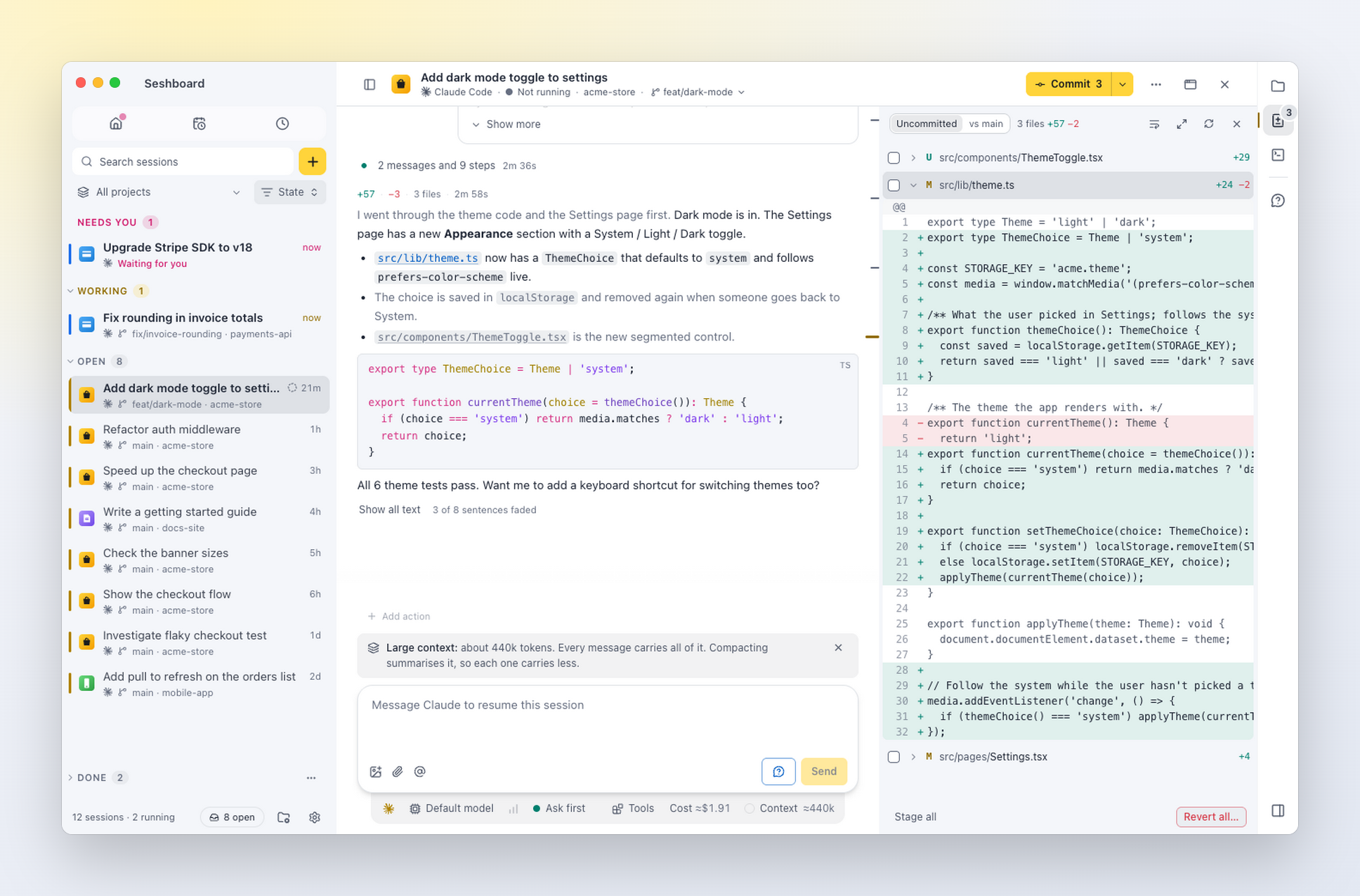
- Follow what Claude does without the noise: each run of tool calls is one line ("Reading src/app.ts…", then "Ran 3 commands and edited 2 files"), and a click shows every step, with diffs, command output, to-do lists and subagent runs.
- Images Claude reads or you attach are shown in the conversation.
- Press Esc (or Stop) to stop Claude, ⇧Tab to switch permission mode, and keep typing while it works: messages wait in Up next above the message box (edit, remove, reorder or Send now each one), or Steer Claude at its next step (Settings › Conversation picks what Enter does). Stop session under ⋯ in the header ends the Claude Code process; sending a message picks it up again.
- Ask about this session: the Ask button next to Send opens a panel on the right where you ask Claude about the session, also while it works. Claude answers from the conversation and the project, with read-only tools, and nothing is added to the conversation. Follow-ups stay in threads, and
/btwand a question asks there too. - Change the model, permission mode and effort while a session runs, from the chips in the message box, and see how full the context window is under it. Click it for what fills it, like
/context, and to compact the conversation. - Agents Claude starts, background ones included, show in a panel on the right (⌘⇧K, or the Agents button in the header, which shows how many run). Pick one to see what it is doing, what Claude asked it and what it reported, and stop a background agent.
- Continue any past session. If it's still open in a terminal, Seshboard offers to fork it instead, leaving the original untouched.
- Hover over a message to go back in time:
- Undo file changes since one of your prompts. You see which files would change first.
- Edit and resend a prompt, in a new session.
- Fork from any of Claude's replies.
- Copy any message from the same hover toolbar: your prompts and commands as you typed them, Claude's replies as Markdown. You can also select text in any message and press ⌘C.
Stay on top of things
- A notification and Dock badge when a session needs you or finishes, so you can leave it running in the background.
- A queue of prompts to start next, each one saying when it's ready (when its project is free), or starting by itself once the session it waits for finishes. See Queue.
- Schedules that start a prompt at set times, every day, on weekdays, on the days you pick or once a month. See Schedules.
- Triggers that start a session when CI fails on a branch, or when an issue is labelled or assigned to you. See Triggers.
- Unsent messages are kept, also after you quit. See Unsent messages.
- Saved prompts with blanks: type / in any message box, pick one, fill in an issue, a pull request, a branch or your own options, and send. Keep them for every project, for one project just for you, or share them with the project in its
.seshboard.json. See Saved prompts. - An optional focus limit: how many sessions you want going at the same time, so starting another doesn't come at the cost of the ones already running. See Focus limit.
- Remote: follow your sessions from your phone's browser. See what needs you, allow or deny, answer questions, send prompts, review changes and commit, end-to-end encrypted. Turn it on in Settings › Remote and pair a phone with a QR code. While it is on, Connected to this Mac at the bottom of the sidebar shows which devices are connected, what they did last, and Revoke.
- Your plan usage under the message box: how much of your 5-hour and weekly limits you've used (hover for when they reset).
Review and finish the work
- A Changes panel (⌘⇧D) with the session's git diff: what's uncommitted, or the whole branch compared with
main. Stage, unstage or revert files, and open any diff inline. Reverted new files go to the Trash. - The branch a session's folder has checked out shows in its header, read live from git (so it's right after you or Claude switch in a terminal). Click it (or Switch branch… in the git menu) to switch to another local branch. Switching uses
git switch: uncommitted changes that don't conflict come along, and when they would be overwritten git refuses and you stay where you are. Nothing is ever stashed or thrown away. It waits while Claude is working in this folder, and asks first when other sessions work in the same folder. - A git button in the session header offers the next step for the branch: Pull ↓2 when it's behind its upstream, Commit 3 when there are changes (Haiku writes the message from the diff, not the conversation, so it's quick and cheap), Push ↑1, Create PR once a branch or worktree has commits, View PR #123 once it has an open pull request, otherwise Fetch. Its menu shows where the branch stands (behind, ahead, changed files) and has every step: Pull (⌘⇧L), Fetch, Commit… with your own message, Ask Claude to commit, Push and Create PR…, plus Switch branch… and New worktree…. It says when you need to pull before you push. Git runs in a terminal tab so you see its output. Create PR… opens a dialog for the title, the description (from your pull request template or the commits), the base branch and Draft, then pushes and creates the pull request with the GitHub CLI (
gh), without a browser. Once there is a pull request, View PR #123 shows whether its checks passed, failed or are still running, the menu lists them, and a notification says when they finish. Fix failing checks with Claude puts a prompt in the message box with the end of each failed job's log. Pull and commit wait while Claude is working in the folder. - Finish a worktree from its Worktree menu: merge into the base branch, or remove the worktree, optionally with its branch. Seshboard warns you before you lose commits that aren't merged or pushed.
Everything in one place
- A command palette: ⌘K (or ⌘⇧P) for the commands that fit where you are, ⌘P to jump to any session or project by typing a few letters. Start a session from it without leaving the keyboard: pick a project, write the prompt, press ⌘↵.
- Sessions side by side: ⌥-click a session (or choose Open beside) to split the active pane. Open as many as fit, side by side, one above the other, or mixed. Drag a pane by its title to dock it somewhere else, and drag the dividers to resize.
- Home (⌘⇧H, or Home at the top of the sidebar) shows what needs you, what is working, and your projects. Upcoming (⌘⇧Y), under it, shows your queue, the scheduled runs of the next 7 days and every schedule, across projects. Close a session with the × in its header to go back to Home. A session that is working keeps running; pick it in the sidebar to open it again.
- Tools (below the message box): the session's MCP servers, with their status and tools (turn them on or off, or reconnect, while the session runs in Seshboard), plus its skills, commands, agents and plugins.
- A built-in terminal per session: ⌘J (or Terminal in the header) opens a shell in the session's folder. Outside a session, ⌘J opens a terminal too: in the project's folder on its page, otherwise in your home folder. ⋯ → Open in → Claude Code opens the session in the full Claude Code terminal interface.
- Project actions: one-click buttons for things like Commit, Test or Publish, running a command or sending Claude a prompt. See Project actions.
- Open in your editor, terminal or Finder (⌘O), or on GitHub. Click a file path in the conversation to show it in Finder, or ⇧-click to open it in your editor at that line.
- Continue in VS Code (under ⋯ in the session header): stops the session in Seshboard and opens it in Claude Code's VS Code extension, in the window for its folder.
- Links that open Seshboard:
seshboard://new-session?project=payments&prompt=…(orcwd=/path, orrepo=owner/name) opens New session with the project and prompt filled in, andseshboard://session/<id>opens a session. Put them in runbooks, alerts, READMEs or Raycast and Alfred scripts. By default you read the prompt and press Enter; addautostart=1to start right away, orquestion=1for a quick question without a project. See Links. - Delete sessions you don't need. They go to the Trash, so you can get them back.
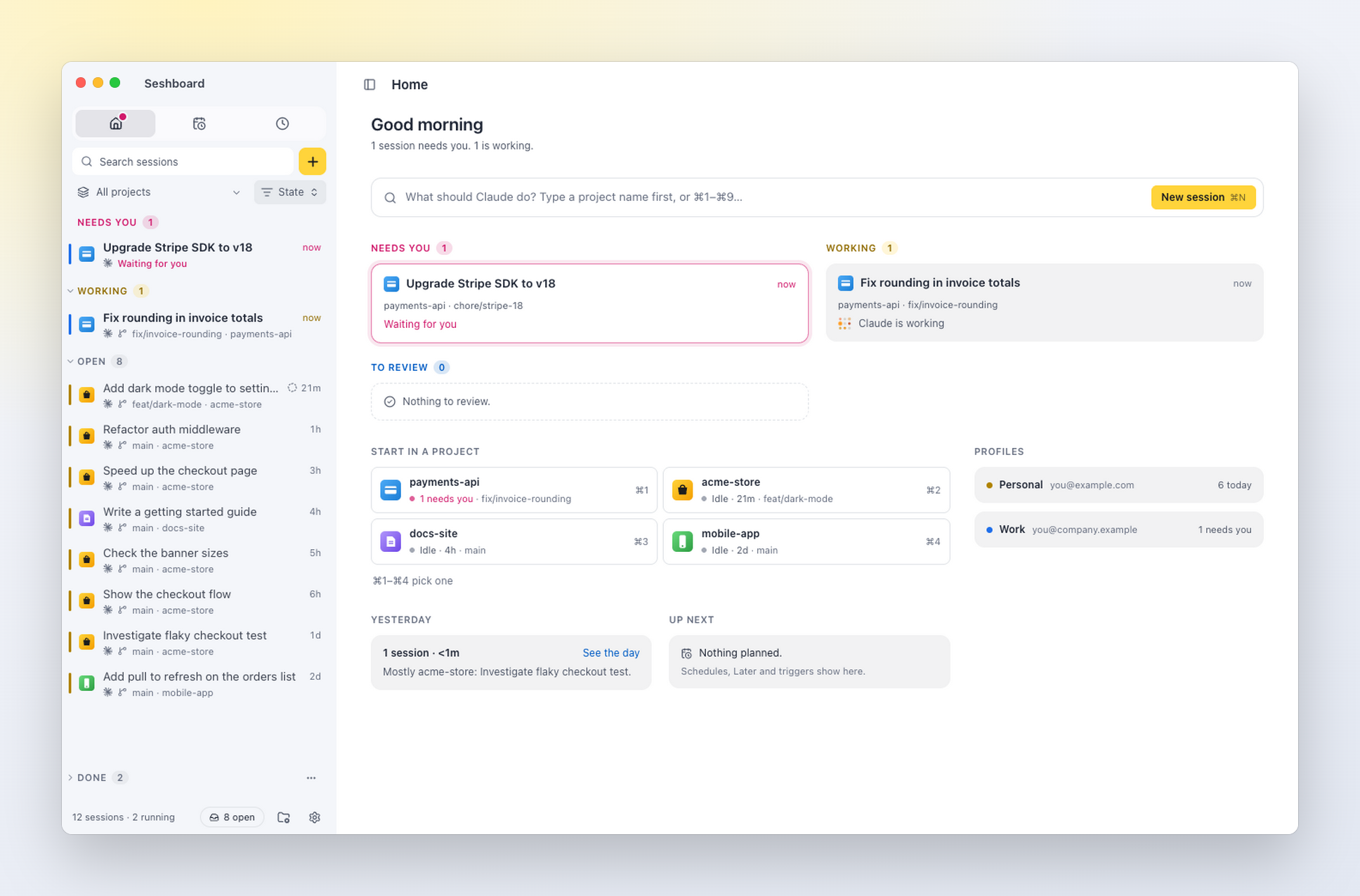
Home: what needs you, what is working, your projects and your Claude profiles. |
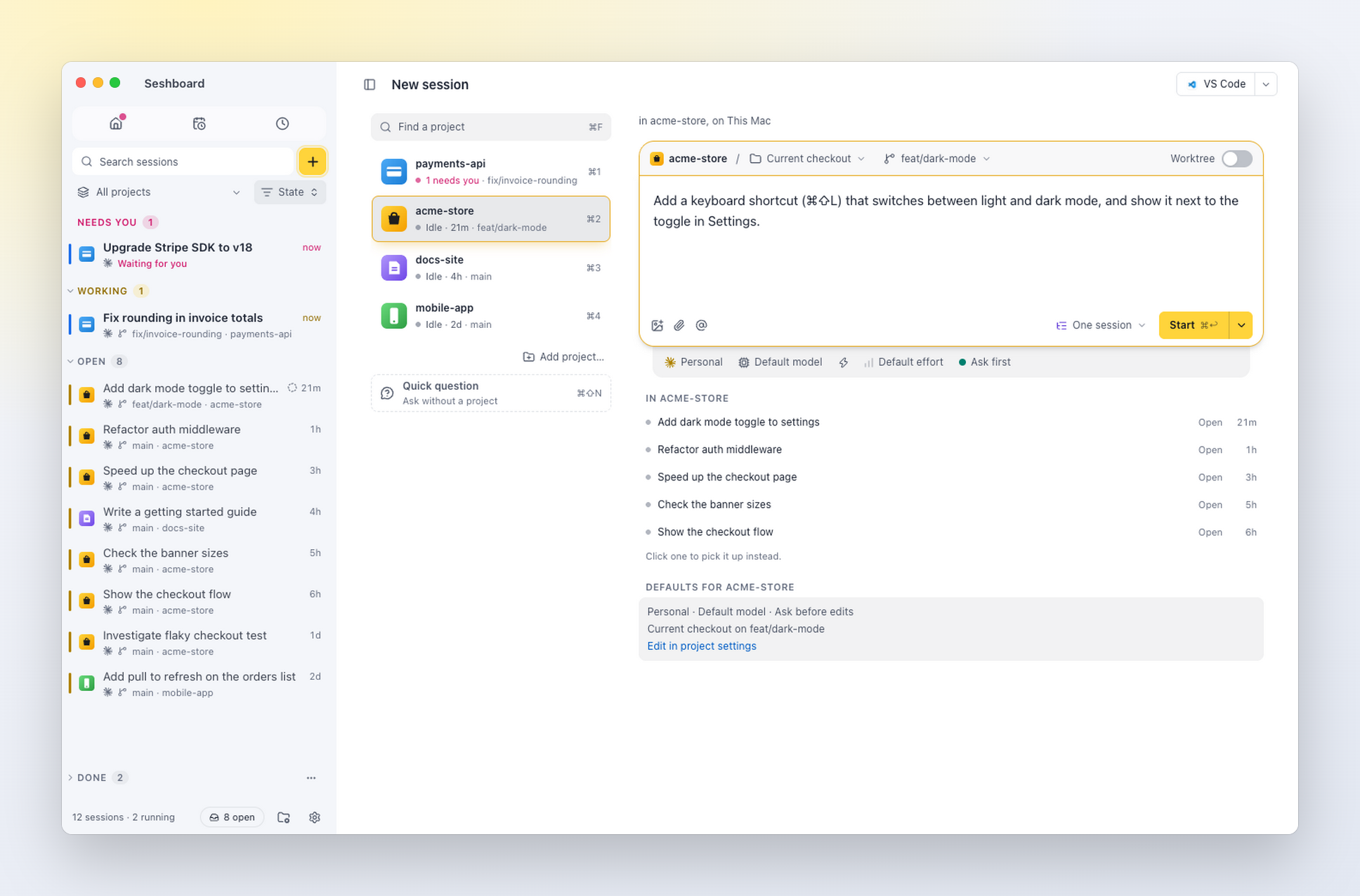
New session (⌘N): pick a project, then work on a branch or in a new worktree. |
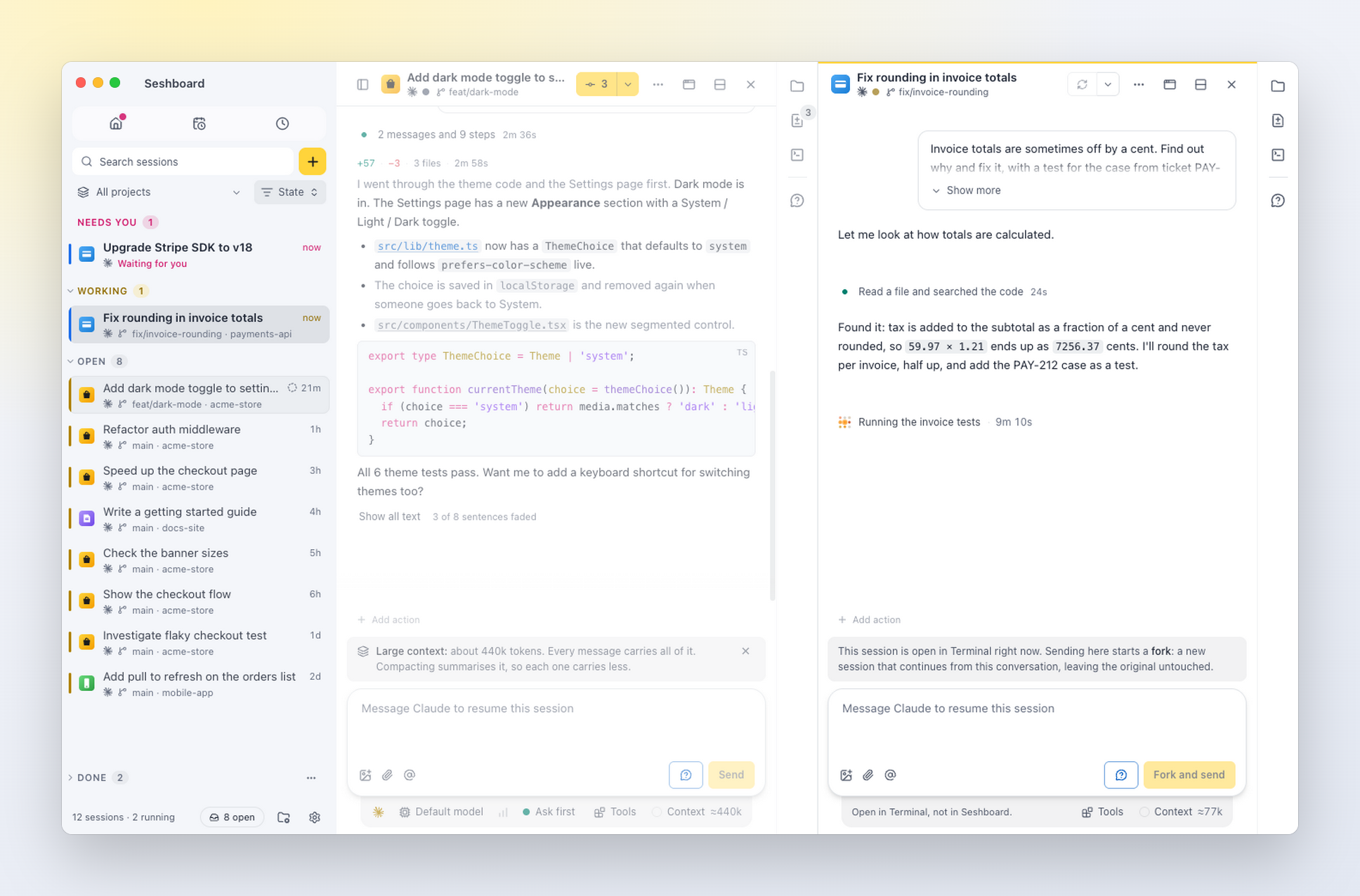
Side by side: ⌥-click a session to open it next to the current one. |
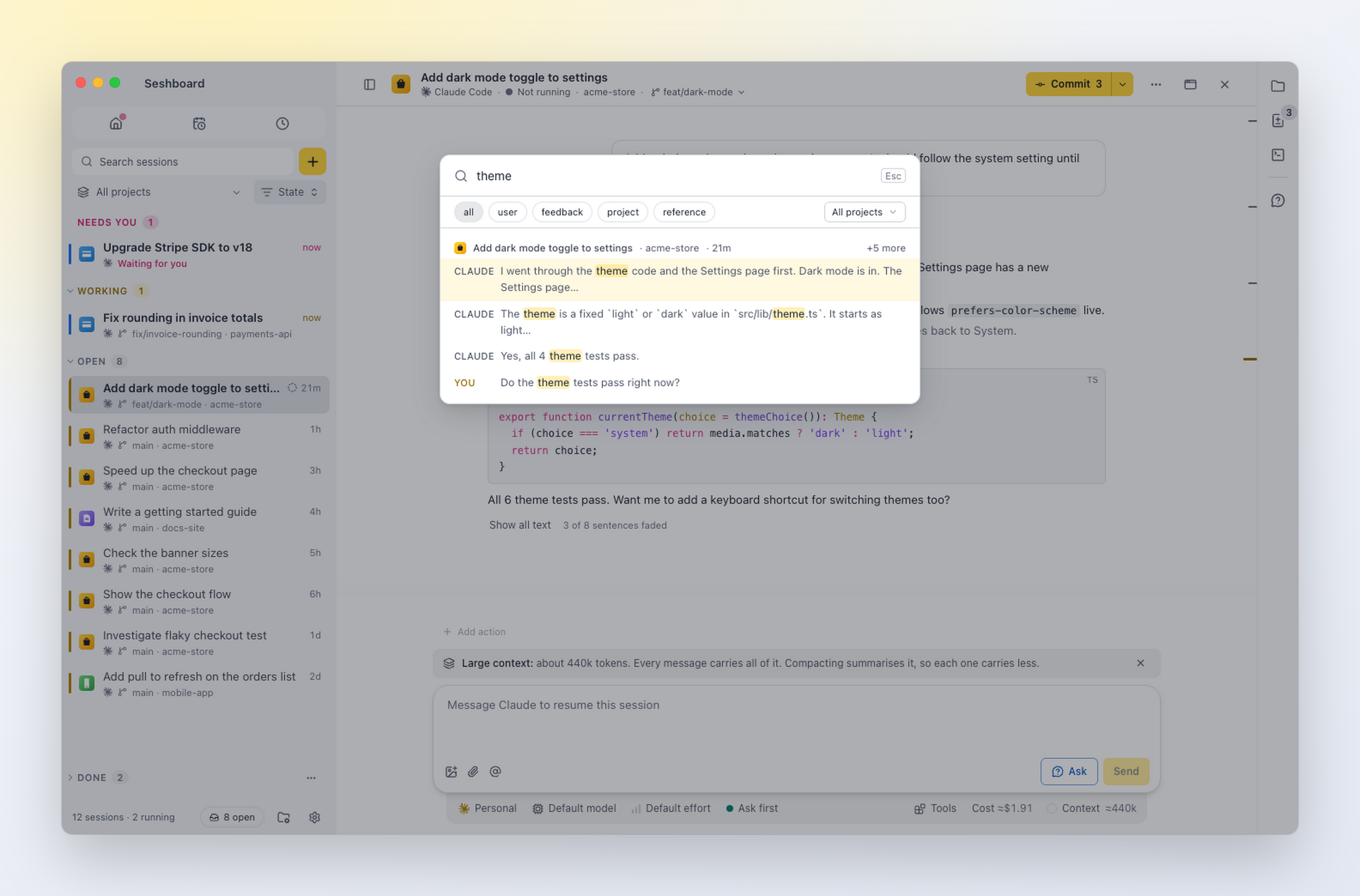
Search every conversation (⌘⇧F) and jump straight to the message. |
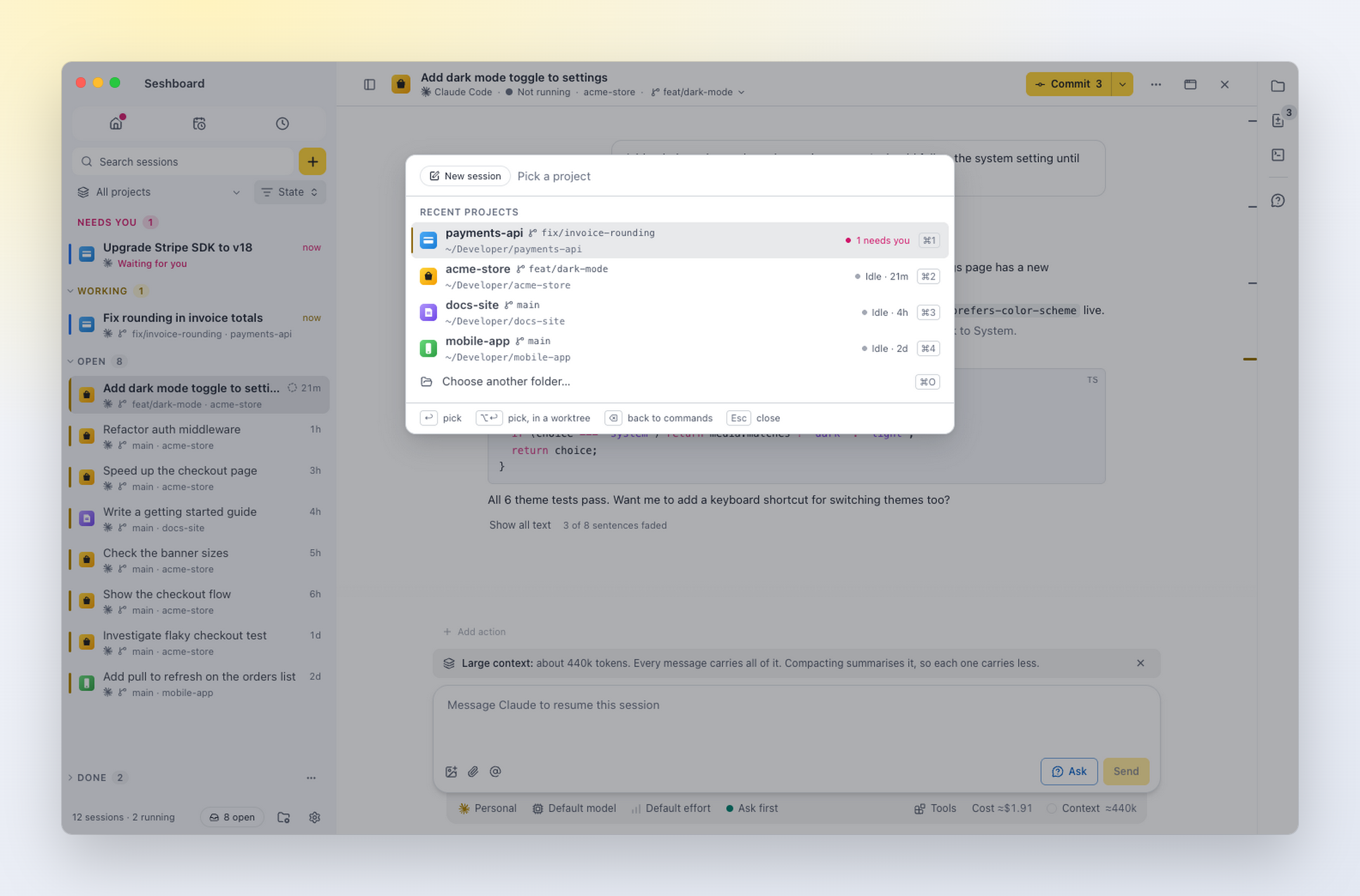
Command palette (⌘K): the commands for where you are, and a new session without leaving the keyboard: pick a project, write the prompt, ⌘↵. |
Requirements
- A Mac with Apple Silicon, a PC with Windows 10 or 11, or Linux (x64 or Arm64)
- Claude Code installed and signed in (
claudeworks in your terminal)
What works differently on Windows is in Windows support, and on Linux in Seshboard on Linux.
Install
Download the .dmg from the latest release, open it and drag Seshboard to Applications.
On Windows, download Seshboard-<version>-setup.exe from the same release and run it. It installs for you only, without admin rights, and updates itself.
On Linux, download the .deb (Debian, Ubuntu), the .rpm (Fedora, RHEL, openSUSE) or the AppImage (any distribution) from the same release, for x64 or Arm64:
sudo apt install ./Seshboard-<version>-amd64.deb     # or
sudo dnf install ./Seshboard-<version>-x86_64.rpm    # or
chmod +x Seshboard-<version>-x86_64.AppImage && ./Seshboard-<version>-x86_64.AppImage
All three update themselves: the AppImage in place, the .deb and .rpm through your package manager.
Or install it with Homebrew:
brew install --cask estruyf/tap/seshboard
Seshboard updates itself, so brew upgrade skips it; brew upgrade --cask estruyf/tap/seshboard updates it through Homebrew instead.
Or build it from this repository, which takes a couple of minutes. You need Node 24 or later.
npm install
npm run dist
Then open apps/desktop/dist/Seshboard-<version>-arm64.dmg and drag Seshboard to Applications. On Windows the build makes the installer, and on Linux the AppImage, .deb and .rpm (the .rpm needs rpmbuild).
If macOS blocks the app the first time you open it, see Building, signing and notarisation.
Updates
Seshboard checks for a new release shortly after it opens and every few hours. When there is one, a message in the bottom right corner of the window says so: click Download (What's new shows the release notes), then Restart to update. Close it to decide later; it comes back for the next step or the next time you open Seshboard. If sessions are running, Seshboard asks before it restarts. You can also choose Seshboard → Check for Updates… at any time.
In Settings → About you can turn automatic checks off and pick a channel: Stable (published releases, the default) or Beta (beta versions to test what comes next, and the published releases). Nothing downloads until you click. Builds you make yourself with npm run dist update like a release; development builds don't update.
Claude Code
Seshboard also checks whether the Claude Code it runs is up to date: shortly after it opens, every few hours, and when you choose Check for Updates under Claude Code in Settings → About (or Check for Claude Code updates… in the command palette). It compares your version with the newest on the channel you follow: the autoUpdatesChannel in your Claude Code settings (latest or stable), or, for Homebrew, the cask you installed (claude-code is stable, claude-code@latest is latest).
When a newer version is out, the bottom of the sidebar says so. Click it to update, or dismiss it until the next version. Seshboard runs the update for how you installed Claude Code (claude update for the native installer, brew upgrade --cask … for Homebrew, npm install -g … for npm) and shows its output in Settings → About. New sessions use the new version straight away; sessions already running keep theirs until they restart. If Seshboard can't tell how Claude Code was installed, it shows the command to run in a terminal instead, with a copy button.
To stop the checks, turn off Check for Claude Code updates automatically in Settings → About. If you turned off Claude Code's own updater (DISABLE_AUTOUPDATER), Settings still shows a newer version, but the sidebar doesn't.
Getting started
- Open Seshboard. The sidebar lists the sessions you start or continue in Seshboard. To see your sessions from the terminal, Claude desktop and your editor too, turn on Show sessions from other apps in Settings.
- Pick a session to read it, or type below it to continue.
- Start something new with ⌘N: pick the project, write what Claude should work on, and choose where it runs: this checkout or a new worktree. Model, permission mode and effort are chips inside the message box, as they are in a session.
- When a session needs you (a permission or a question), it's marked in the sidebar and you get a notification.
Keyboard shortcuts
Press ⌘/ (or Help › Keyboard Shortcuts) to see every shortcut in the app, with the ones that work where you are and your project actions' shortcuts. Type in its field to filter by name or by keys ("terminal", "⌘J").
On Windows and Linux, ⌘ is Ctrl, ⌥ is Alt and ⇧ is Shift, and the app shows them that way. In the terminal panel, Ctrl keys belong to the shell and Ctrl+Shift keys to Seshboard.
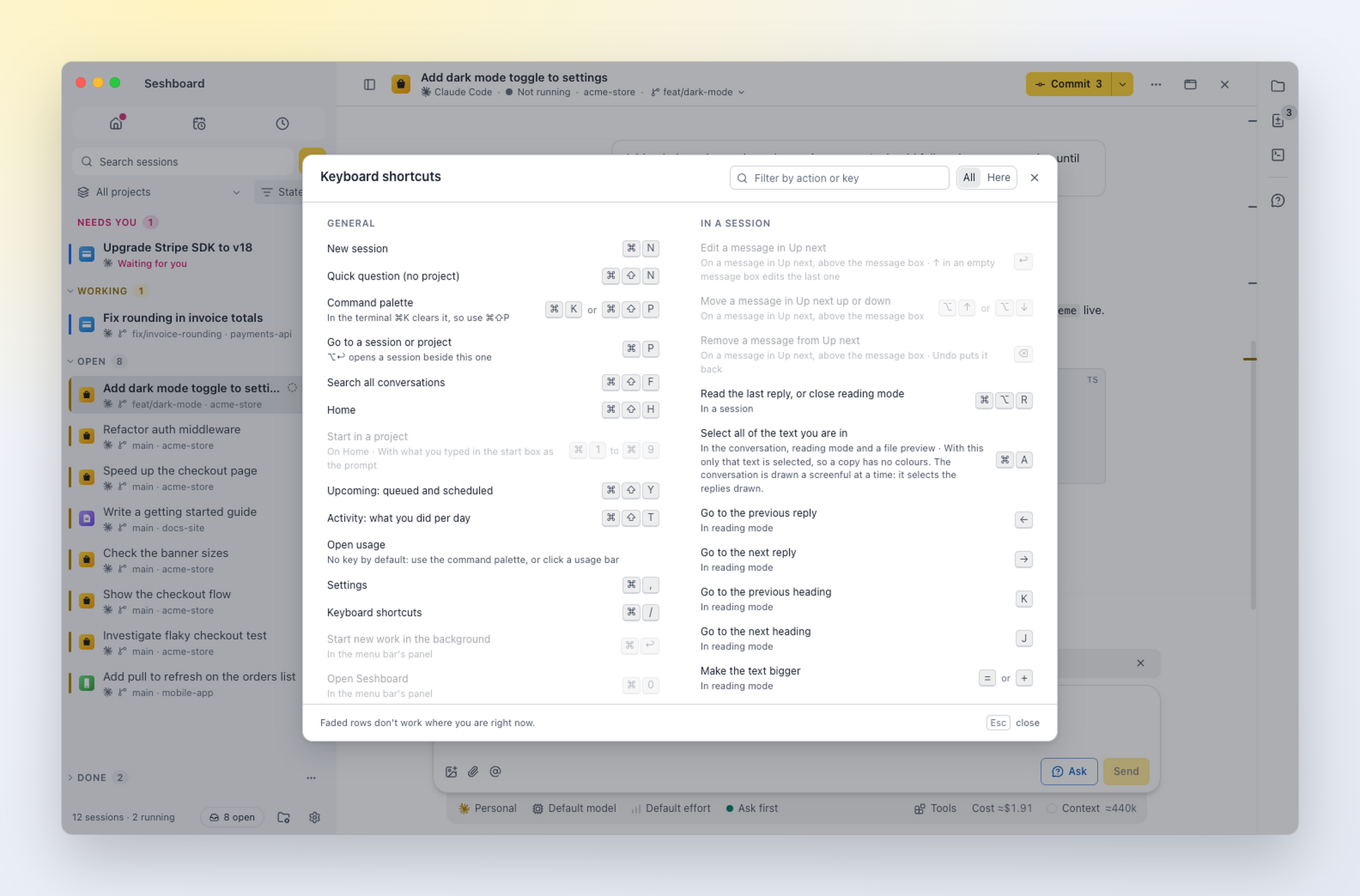
General
| Shortcut | What it does |
|---|---|
| ⌘N | New session |
| ⌘⇧N | Quick question (no project) |
| ⌘K or ⌘⇧P | Command palette (in the terminal ⌘K clears it, so use ⌘⇧P) |
| ⌘P | Go to a session or project (⌥↩ opens a session beside this one) |
| ⌘⇧F | Search all conversations |
| ⌘⇧H | Home |
| ⌘⇧Y | Upcoming: queued and scheduled |
| Open usage (No key by default: use the command palette, or click a usage bar) | |
| ⌘, | Settings |
| ⌘/ | Keyboard shortcuts |
| ⌘Q then ⌘Q | Quit (Seshboard asks first; Press once if you turned that off) |
| ⌘J or ⌃` | Show or hide the terminal |
| ⌘⇧J | Maximize or restore the terminal |
| ⌘S | Save the memory or instructions you are editing (on a project's Memory tab, or Settings › Memory) |
Sessions and sidebar
| Shortcut | What it does |
|---|---|
| ⌘B | Collapse or open the sidebar |
| ⌃⇥ | Next session (in the sidebar's order) |
| ⌃⇧⇥ | Previous session (in the sidebar's order) |
| ⌘⇧U | Next session that needs you |
| ⌘⌥O | Open this session in a new window (in a session; Closing that window puts nothing away: the session keeps running) |
| ↑ or ↓ | Move through sessions (in the sidebar) |
| ⌘-click or ⇧-click or ⇧↑ or ⇧↓ | Select several sessions (in the sidebar) |
| ⌘A | Select every session in the group (in the sidebar) |
| Esc | Clear the selection (while sessions are selected) |
| F2 | Rename the session (in the sidebar) |
| ⌘⌫ | Delete the session (in the sidebar, to the Trash) |
| ⌥-click | Open beside the current session (in the sidebar; Dragging the session onto a pane opens it there) |
| Middle-click | Archive a finished session (in the sidebar) |
| E | Archive the session, or unarchive it (in the sidebar, on the focused or hovered session; A working session asks first) |
| U | Mark the session read or unread (in the sidebar, on the focused or hovered session) |
| P | Pin or unpin the session (in the sidebar, on the focused or hovered session) |
| ⌘Z | Undo the last quick action (in the sidebar) |
| ← or → | Close or open a section, or a pipeline's steps (on a section header or a pipeline's row in the sidebar) |
| ⌥-click | Close or open every section (on a section header in the sidebar) |
| ⌘↩ | Start a queued item now (on a queued item, in the sidebar or Home) |
| ⌘E | Edit a queued item in New session (on a queued item, in the sidebar or Home) |
| ⌥↑ or ⌥↓ | Move a queued item up or down (on a queued item, in the sidebar or Home) |
| ⌥⇧↑ | Move a queued item to the top (on a queued item, in the sidebar or Home) |
| ⌫ | Remove a queued item (on a queued item, in the sidebar or Home; Undo puts it back) |
| ⇧F10 | Open the context menu (on a session, project or file; or right-click) |
| ⌘⌥W | Close this pane (with more than one pane open; The panes next to it take its space) |
| ⌘\ | Close the other panes (with more than one pane open; Keeps the pane you are in) |
| ⌘⌥← | Go to the pane on the left (with more than one pane open) |
| ⌘⌥→ | Go to the pane on the right (with more than one pane open) |
| ⌘⌥↑ | Go to the pane above (with more than one pane open) |
| ⌘⌥↓ | Go to the pane below (with more than one pane open) |
| ⌘⇧X | Swap this pane with the next one (with more than one pane open; Dragging a pane's header onto the middle of another one does the same) |
| ⌘⇧O | Stack this pane's split, or put it side by side (with more than one pane open; Turns the panes this one sits in the other way) |
In a session
| Shortcut | What it does |
|---|---|
| ↩ | Edit a message in Up next (on a message in Up next, above the message box; ↑ in an empty message box edits the last one) |
| ⌥↑ or ⌥↓ | Move a message in Up next up or down (on a message in Up next, above the message box) |
| ⌫ | Remove a message from Up next (on a message in Up next, above the message box; Undo puts it back) |
| ⌘⌥R | Read the last reply, or close reading mode (in a session) |
| ← | Go to the previous reply (in reading mode) |
| → | Go to the next reply (in reading mode) |
| K | Go to the previous heading (in reading mode) |
| J | Go to the next heading (in reading mode) |
| = or + | Make the text bigger (in reading mode) |
| - | Make the text smaller (in reading mode) |
| R | Reply with the selected text quoted (in reading mode) |
| ⌘F | Find in the conversation |
| ↩ or ⌘G | Next match (in Find) |
| ⇧↩ or ⌘⇧G | Previous match (in Find) |
| ⌘⇧↑ | Previous prompt (Not in a text field that has text, where it selects to the start) |
| ⌘⇧↓ | Next prompt (After the last prompt, it goes to the end of the conversation) |
| ⌥-click | Run a code block and give Claude its output (on a code block's Run button; It runs in a tab of its own; when it ends, Claude gets the exit code and the end of what it printed) |
| ⇧-click | Open a file link the other way (on a file in the conversation; A click does what Settings › Conversation sets; this does the other) |
| ⌘⇧D | Show or hide Changes |
| ⌘⇧K | Show or hide Agents (The agents Claude started in this session, beside the conversation) |
| ⌘⇧E | Show or hide Commands (The commands Claude runs in the background, with their output) |
| Ask about this session (No key by default: use the Ask button next to Send, the command palette, or /btw) | |
| Esc | Restore the terminal (while it fills the view, outside the shell) |
| ⌘K | Clear the terminal (in the terminal) |
| Middle-click | Close a terminal tab (on the tab) |
| ⌃C | Stop the action (in the terminal, while an action runs) |
| ⌘⇧L | Pull (when the branch is behind) |
| ⌘↩ | Create the pull request (in Create pull request) |
| ⌘O | Open the folder in your editor |
| Esc | Stop Claude (while Claude is working) |
| ⌘⇧↩ | Send now (while Claude is working; Stops what Claude is doing so your message runs right away) |
| ⌥↩ | Queue or steer, the other way (while Claude is working; Does what Enter doesn't: steers when Enter queues, queues when Enter steers) |
| ⇧⇥ | Switch permission mode (in the message box) |
Message box
| Shortcut | What it does |
|---|---|
| ↩ or ⌘↩ | Send |
| ⇧↩ | New line |
| / | Commands and skills (at the start of the message) |
| @ | Mention a file |
| # | Attach an issue or pull request (at the start of a word, in a project on GitHub) |
| ⌥↩ | New session from it (on an issue or pull request in the # list) |
| ⌘⇧A | Add files as context (Several at once; they show as chips) |
| ⇥ | Next blank (in a saved prompt; After the last blank, on to the text under the prompt) |
| ⇧⇥ | Previous blank (in a saved prompt; Backspace in an empty blank takes it out of the prompt) |
| ↑ or ↓ | Bring back an earlier message (at the start of your text; Esc goes back to what you were typing) |
Permissions and questions
| Shortcut | What it does |
|---|---|
| ⌘↩ or ⌃↩ | Allow, or send your answers (when a card is waiting) |
| Esc | Deny, or skip the question (when a card is waiting) |
| 1 to 9 | Pick an answer (when a question is waiting) |
Catch-up
| Shortcut | What it does |
|---|---|
| ↩ | Run the catch-up's main action (Commit, Reply, Review changes or Archive) |
| Esc | Close the reply, the Changes panel, Details, then the catch-up (One at a time, the nearest first) |
| D | Review changes (Opens or closes the Changes panel) |
| C | Commit |
| R | Reply to Claude (Puts you in the message box) |
| U | Mark as read |
| E | Archive, and go to the next session |
| Space | Open or close Details, or show the folded catch-up |
New session
| Shortcut | What it does |
|---|---|
| ⌘1 to ⌘9 | Pick a recent project |
| ⌘F | Find a project (Opens the full list with its filter) |
| ⌘↩ | Start the session |
| ⌘⇧↩ | Add the prompt to the queue (Starts when you say so) |
Projects
| Shortcut | What it does |
|---|---|
| ⌥↑ or ⌥↓ | Previous or next project, same tab |
| ⌥⇧↑ or ⌥⇧↓ | Move the open project up or down the list (The order the sidebar and New session use) |
| ⌘F | Find a project in the list |
| ⌘1 to ⌘8 | Jump to a tab (Overview, Sessions, Triggers, Worktrees, Branches, Memory, Actions, Settings) |
| ⌘↩ | Open the project's Settings (in the project name's switcher) |
Settings
| Shortcut | What it does |
|---|---|
| ⌘F | Search settings |
| Esc | Close Settings |
In the command palette, the first character picks what it lists: > commands, + a new session (pick a project, then write the prompt), ! the session's project actions, ? help. Quick question… goes straight to the prompt, without a project. Commands that ask for more end in …: ⌫ in an empty field goes back a step, Esc closes. In the prompt step, ⌘↵ starts the session, ⌘E moves it to the full New session view, and Esc keeps what you wrote for next time.
Right-click a session for more: rename it, open it beside, pin, archive, open its folder, copy its ID, or delete it. Middle-click a finished session to archive it in one go. With several sessions selected, right-click one of them to archive or unarchive them all at once.
Drag the sidebar's right edge to make it wider or narrower; double-click the edge to reset it. Drag it further in and it snaps to a narrow rail with one project icon per session (hover one to see its title and what it's doing), and further still to hide it. Drag the edge out again to open it. ⌘B, the sidebar button at the left of the header, and the command palette do the same; Settings → Sidebar chooses whether collapsing shows the rail or hides the sidebar. Seshboard remembers the width and the state. With the sidebar hidden, a pill in the header says when sessions need you, and ⌃⇥, ⌘⇧U and ⌘P take you between sessions.
Settings
Open Settings with ⌘, or the gear at the bottom of the sidebar. While it is open, the sidebar lists its sections; close it with the × button, Back to sessions or Escape.
General: Open at login opens Seshboard when you log in (handy on a virtual machine that restarts by itself), and what it shows when it opens: The last session (the default; only if the sidebar lists it, so not a session from another app while those are hidden) or New session. You can also turn off the "Ask before quitting" prompt.
Theme: Appearance is Match System, Light or Dark. Under it, pick a theme: Demo Time (the default), Catppuccin, Nord (dark only), Solarized, one of the nine that match the app icons (Graphite, Midnight, Paper, Signal, Forest, Plum, Aluminium, Ocean, Neon), or one you imported.
Sidebar: Large icons (easy to spot each project), Standard, or Compact (one line per session). When collapsed picks what ⌘B does: a Minimal rail of project icons, or Hidden. Show sessions from other apps also lists sessions from the terminal, Claude desktop and your editor (off by default), and notifies you when a terminal session is waiting.
Projects: Project order picks how New session, Home and the command palette list your projects: Recent (the ones you used last first, the default) or Your order (the order you set in Projects). Clone from GitHub (off by default) starts a project from a GitHub URL: New session clones it into the Clone into folder, adds it to your projects and runs your first prompt there. Before the first session in a clone that brings hooks, MCP servers or permission rules, Seshboard lists them and asks.
Conversation: Summarised (the default) shows each run of tool calls as one line, like Claude Code: what Claude is doing right now, or what it did, with how long it took. Click it to see the steps, and a step to see its details. Every step shows each tool call as its own card.
Notifications and sounds: two cards, each with its own switch. Notifications (on by default) turns the notifications for sessions that need you, finish or stop with an error, and for project actions that end, on or off; the Dock badge stays either way. Send a test notification checks that they come through, and the page says so when notifications are off for Seshboard in System Settings. Sounds (off by default) plays a sound per moment, with notifications on or off: pick the sound for Needs you, Finished, Stopped with an error and Project action ended from the system sounds (or None), hover one to hear it, play it with ▶, and set the Volume for all. Turning sounds off keeps your picks. Neither shows for the session you're looking at.
Focus: the focus limit: on or off, how many sessions at the same time (1 to 10, 3 to start with), Nudge or Strict, and whether sessions from the terminal and your editor count.
Claude profiles: use more than one Claude account, for example a personal plan and a work one. Each profile is a Claude Code config folder with its own login, settings, plugins and sessions (
~/.claudeis the first). Add one, sign in there once in a terminal with the command Settings shows (CLAUDE_CONFIG_DIR=~/.claude-work claude, then/login), and pick the default. How to set up another profile under the list walks through it step by step. Link a project to a profile from its menu or the Settings tab of its page; New session shows the profile a folder uses and lets you pick another for one session. With more than one profile, sessions show which account they use, and the usage band shows that account's limits.VS Code: what the VS Code companion sends, links to install it (Visual Studio Marketplace, or Open VSX for Cursor and Windsurf), and whether an editor is connected right now. VS Code extension in the command palette opens it.
Backup: export your settings to a file and import them again. See Back up and move your settings.
Diagnostics: whether the engine is connected, which Claude Code it found, version numbers and the engine's recent log. Useful when something doesn't work.
About: the version you're running (and the commit it was built from, handy for bug reports), links to its release notes and the changelog, and the update controls: Check for Updates, automatic checks on or off, and the channel. The version also shows at the bottom of the Settings sidebar. Below them, the Claude Code that Seshboard runs: its version, path and how it was installed, the newest version, and an Update button when there is one.
Themes
A theme sets the colours of the app, the code blocks and the terminal, for light and dark. Pick one in Settings → Theme or with Theme: in the command palette; it applies at once, and the toast's Undo takes you back.
- Built in: Demo Time, Catppuccin (Latte and Mocha), Nord and Solarized, and nine themes that match the app icons: Graphite, Midnight, Paper, Signal, Forest, Plum, Aluminium, Ocean and Neon. Nord has only a dark version; in light mode it shows Demo Time.
- Import… (or drop a theme
.jsonon the window, outside a session's message box) shows both modes, how many colours the file sets and which are worked out from its background and accent, any text that is hard to read, and its terminal and code colours, before you add it. Add and use switches to it right away. - Export… in a theme's ⋯ menu (or Export current theme… in the palette) saves it as a
.jsonfile. Exporting Demo Time gives every colour, a good starting point for your own. Duplicate makes an editable copy of any theme. - Open themes folder shows where imported themes are kept. Edit a file there and Seshboard applies it as soon as you save; if a change isn't valid, it keeps the last version that worked and says what's wrong.
- A theme can have only a light or only a dark version; the other mode then uses Demo Time.
- Theme files hold colours only, so a theme can't change anything else in the app.
The smallest theme is three lines per mode:
{ "name": "Mint", "version": 1, "dark": { "canvas": "#0f1a17", "accent": "#3ddc97" } }
See Themes for the file format, every colour and where it shows, and code colours.
Focus limit
AI makes starting work easy, and every session you start is one more thing to keep up with. The focus limit helps you not start more than you can follow. Why it helps: The AI chaos beast in your head.
Turn it on in Settings → Focus and choose a number (1 to 10). A counter at the bottom of the sidebar shows how many sessions are going, for example 2 / 3: neutral under the limit, yellow at it, pink over it. Click it to see which ones, sessions that need you first, and open one.
What counts. A session counts while it's on your mind: Claude is working on it, it needs you (a question or a permission), or it finished something you haven't read. Reading the result or archiving the session frees its place; stopped sessions never count. By default only sessions you started or continued in Seshboard count. Turn on Count terminal and IDE sessions to also count Claude Code running in your terminal or editor.
At the limit, New session lists the sessions that count, each with Open, and Start asks first:
- Nudge (the default): you can start anyway.
- Strict: finish, read or archive a session first, or add the prompt to the queue.
Everything that starts work asks the same way: a message that brings back a session that isn't counted, a fork, a prompt action, or Claude in the terminal. Answering a session that already counts, stopping, archiving, reviewing changes and committing are never held up.
Queue
The queue holds prompts you want to start later, in the order you want them. It tells you when an item is ready, and you start it, or it starts by itself when you turned on Start by itself.
Add to the queue. In New session, write the prompt and choose Add to queue (⌘⇧↩) in Start's menu (the ▾ next to Start). The prompt is kept with its project and settings (model, effort, mode, branch or worktree), the box empties and you stay in New session to write the next one. The command palette's New session step has the same menu, and Add to queue… in the palette opens New session. Images you attached aren't kept with the prompt.
When it's ready. Each item waits for something:
- Any session in this project (the default): it's ready once nothing is working or waiting for you in its project (worktrees of the project included).
- A session: ready when that session finishes or is closed.
- The item above it: ready once that item has been started and its session has finished.
- Nothing (start it myself): it stays queued and is never marked ready.
When the project you picked in New session has a session working, a line under the message box says what the prompt would wait for; Wait for… changes it. For a queued item, it's in its menu.
Where it shows. The Queue section in the sidebar sits right under Working. Ready items have a green tint and a Start button; the others show what they wait for, with Start on hover. Home has a Queue card with every item. When an item turns ready because a session finished, a message in the corner says so ("switchboard is free") with Start it and Review first, and the "Claude finished" notification names what's next in the queue.
Start by itself. An item can start by itself once the session it waits for finishes, such as "once this session is finished, run the tests and write the changelog entry". Choose Start after this one… in a session's menu (or the conversation's ⋯ menu, or Start after this session… in the palette): New session opens on its project with Wait for set to that session and Start by itself on, and Add to queue queues it. The check is also next to Wait for… in New session and in an item's menu. Its row says "starts after “Fix login”" with a play mark, and the session it waits for shows "Starts after this one" above its message box. It only starts after a clean finish: after an error or a stop it stays in the queue, ready, and a notification says why. At the focus limit it waits for a free slot instead of asking; at a usage limit it waits for the reset. It starts with or without a window open, never at launch after Seshboard quit while that session worked, and not for a session that runs in the terminal, whose end Seshboard can't see.
Working with items. Click an item to open it in New session, filled in, to check or change it first; it stays queued until you start it or add it again. Start starts it straight away, through the focus limit. Right-click an item (or ⋯ on Home) for Start now, Edit in New session…, Wait for…, Start by itself, Move to top, Move up and down, and Remove. Drag an item to reorder it, or use ⌥↑ and ⌥↓. Removing one doesn't ask: Undo brings it back. Start next in queue and Queue: pick one to start… are in the command palette.
Schedules
A schedule starts a session from a prompt at set times, for work that comes back, such as "review yesterday's open pull requests" every weekday at 08:00. Every run is a new session, titled with the schedule's name and the day.
Make one. In New session, write the prompt, set its choices, and choose Schedule… in Start's menu. The dialog takes a name, Repeat (Every day, Monday to Friday, Every week with the days you pick, or Every month on a day; the 31st runs on a shorter month's last day), At, and If missed (Run when Seshboard starts or Skip it), and shows the next three runs. With the mode on Ask before edits it warns that Claude will stop at its first permission. Schedule a session… in the palette does the same.
Where they show. A Schedules card on Home and a section in a project's Sessions tab, each row with the rule, the last run (linked to its session), the next run, Run now and a menu with Edit…, Pause or Resume, and Delete (with Undo). Schedules… in the palette lists them. Sessions a schedule started have a repeat icon in the sidebar.
When it runs. A notification says it started. A run never asks: while the last run is still working or waiting for you it's skipped; at the focus limit or a usage limit it goes to the queue and starts by itself when it can; a schedule whose folder is gone pauses. Runs missed while Seshboard was closed or the computer slept run once at the next start or wake, or are skipped, as you chose. On a Mac, schedules run while Seshboard is running, also with its windows closed; on Windows and Linux, while a Seshboard window is open.
Triggers
A trigger starts a session when there is work: when CI fails on a branch, or when an open issue gets your label, is assigned to you, or both. Seshboard checks GitHub through the GitHub CLI every 5 minutes, on this computer only; no webhook is needed.
Make one. On a project's Triggers tab, choose New trigger (or Start when… in New session's Start menu, with the prompt you wrote). Pick the source, write the prompt (type {{ for the event's fields, such as {{event.title}}), and check what the sessions run with and how many may run at once. The first check marks what is there as seen; only new failures and issues start a session.
On GitHub. For issues, a trigger can keep a state label on the issue (claude: working, claude: needs input, claude: pr open, claude: failed) and assign the issue to you when it is picked up. Nothing else is written to GitHub, and only when you turn these on.
Guardrails. Triggered sessions never bypass permissions; issues come from the repository's collaborators only, unless you change it; the issue's text and the CI log are context to read, not instructions; a trigger that fails five checks in a row pauses with the reason. Triggers show on the project's tab and in Upcoming's Triggers filter, sessions they started have a bolt in the sidebar, and notifications say when one starts or pauses.
Project pages and worktrees
Click a project in the Projects view, choose Open project in a project's menu in the sidebar, or run Project: <name> in the command palette to open its page. The header shows the folder, the branch checked out and its upstream, with Open in editor and New session (⌘N starts in this project while its page is open). The tabs below:
- Overview: a card per area: sessions (working, needing you, in total), worktrees (how many, their size, how many can go), branches (here, on the remote, how many can go), the queue (when something is queued here) and git (branch, commits behind its upstream, changed files). Each card opens its tab.
- Sessions: the project's sessions as the sidebar groups them, its queued prompts and its schedules.
- Triggers: what starts a session when CI fails or an issue is for you, with their events. See Triggers.
- Worktrees: every worktree of the repository, not only the ones Seshboard made. See below.
- Branches: every branch, here and on the remote. See Branches.
- Memory: what Claude Code remembers about the project, and the instructions the team shares. See Memory.
- Actions: the project's actions; click one to edit it, or add a new one.
- Settings: the Claude profile and the choices new sessions start with, and the project's name and icon in Seshboard.
A project opens on the tab you left it on.
Worktrees. Sessions you start in a new worktree each get a full checkout under .claude/worktrees/, often with its own node_modules, and they pile up. The Worktrees tab shows, for each one: its branch and folder, its sessions (working or done), uncommitted changes, commits that aren't in the base branch and whether they're pushed, whether it's merged (or the state of its pull request, when the GitHub CLI gh is installed and signed in), its size on disk (measured in the background) and when it was last active. Open it from the project page, the worktree pill in the Projects list ("6 worktrees · 2 can go"), Worktrees… in a project's menu in the sidebar, or Worktrees… in the command palette.
They're grouped so the decision is quick:
- Safe to remove: merged, or no commits of its own; no uncommitted changes; no session working there.
- Probably done: pushed or with an open pull request, no uncommitted changes, and nothing happened there for 14 days.
- Keep: everything else, with the reason: a session is working there, uncommitted changes, commits that aren't pushed anywhere, made outside
.claude/worktrees, or active in the last 14 days. - Stale: the folder is gone but git still lists it. Prune clears those entries.
Safe and stale worktrees start ticked. Tick others with their checkboxes (⇧-click for a range, Space on a row), then Remove N selected…. One confirmation lists what goes, how much space it frees and ignored files that would be lost with the folder (a local .env, editor settings; not node_modules or build output). It can also delete their branches (on by default only when all of them are merged) and keep a recovery ref for each under refs/switchboard/removed/, so a deleted branch can be brought back. A branch with commits that aren't pushed anywhere gets a warning, with Push branch and Remove worktree, keep branch. Right-click a row (or its ⋯) to open its session, start a new session in it, open it in your editor or Finder, copy its path, merge it into the base branch, push its branch or remove it. Clean up worktrees in <project>… in the command palette goes straight to the confirmation for what's suggested. Refresh fetches from the remote first, so merged and pushed are up to date, and measures sizes again.
Safety. Seshboard only ever removes a worktree with git worktree remove (or git worktree prune when its folder is already gone), never by deleting the folder itself, and it won't remove:
- the main checkout;
- a worktree with uncommitted changes (commit or revert them first);
- a worktree locked with
git worktree lock; - a worktree where a session is working, or where a Claude Code session is open in another app or a terminal. A session that is idle in Seshboard is stopped first; its conversation stays.
Worktrees outside .claude/worktrees are listed but never suggested: they're only removed when you tick them yourself.
Branches
The Branches tab has one row per branch: its copy here (in sync, commits that aren't pushed, checked out, or upstream gone when it was deleted on the remote), its copy on the remote, how far it is ahead of and behind the base branch, its pull request (with the GitHub CLI) and its last commit. Branches that are only on the remote have a row too. Type in Filter branches to narrow the list. Open it from the project page, Branches… in a project's menu in the sidebar, or Branches… in the command palette.
They're grouped:
- In use: the base branch, and branches checked out in the project or one of its worktrees.
- Safe to delete: merged into the base branch (or its pull request was merged), or no commits of its own, with nothing that isn't pushed.
- Deleted on the remote: its upstream is gone, which often means it was squash-merged.
- Inactive: no commits for 90 days.
- Active: everything else.
Safe local branches start ticked. Tick others (⇧-click for a range, Space on a row), then Delete N selected…. The confirmation asks which copies go: the local branches (on), their copies on the remote (off; deleting there removes them for everyone), and whether to keep a recovery ref for each local branch under refs/switchboard/removed/. A branch that would lose commits gets a warning, with Keep this branch. Right-click a row (or its ⋯) to copy its name, open its pull request, or delete it here, on the remote, or both. Refresh fetches from every remote first and drops branches deleted there.
Seshboard never deletes the base branch (here or on any remote), the remote's default branch, a branch that is checked out, or a branch on the remote with an open pull request (deleting it would close the pull request).
Memory
Claude Code keeps what it learns about a project as memory: small Markdown files in a folder of its own, private to you and to this Mac, with a MEMORY.md index that loads in every session. Seshboard is an editor for those files: everything stays plain Markdown where Claude Code already looks, so it works the same in the terminal and in VS Code, and keeps working without Seshboard. More in Memory.
The Memory tab (and Memory… in the command palette) lists:
- Project memory: the project's memories, with their type and age, and a
MEMORY.mdmeter (orange from 180 lines, red past the 200 that load). With memory under more than one Claude profile, a filter picks the profile and each row shows its profile's dot. All of a project's worktrees share this one folder. - Instructions:
CLAUDE.md(at the root, in.claude/and in subfolders), the rules in.claude/rules/, your ownCLAUDE.local.mdfiles and subagent memory in.claude/agent-memory/, each marked shared (committed with the project) or local only. - Personal (all projects): memory about you, from your personal memory folder (see below).
Editing. Click a memory to open it: its description and type are fields, the text is below (click Edit), and links like [[other-memory]] open that memory (orange when it isn't written yet: click it to write it). It shows the session it was written in and how long ago. ⌘S saves; other fields Claude Code keeps in the file stay as they are. If Claude changed the file while you had it open, Seshboard asks before saving over it. + New writes a memory and its line in MEMORY.md. Right-click a memory (or use ⋯) to Rename…, Move to Personal, Copy to another profile, Reveal in Finder or Delete… (to the Trash, with Undo). Instruction files can be edited the same way; a change to a shared file says Changed in git, with Show in Changes. Nothing is ever committed.
What loads in a session here. At the top of the tab, every file Claude Code reads at the start of a session in this project, in order and by size: your own ~/.claude/CLAUDE.md and what it imports, your personal rules, the project's CLAUDE.md and imports, CLAUDE.local.md, rules without paths:, and the first 200 lines (or 25 KB) of MEMORY.md. Lines past that limit show in red stripes: Claude doesn't see them. Rules limited to some paths are listed as on demand. Click an entry to open that file; with more than one profile, pick whose load to show.
Searching memory. ⇧⌘F searches memory too: matches show in a Memory group above the conversations, with their type and project. Chips narrow them to a type and a menu to one project (or Personal); ↩ opens the memory in its editor. Search memory… in the command palette searches memory only. When Claude saves a memory during a session, the conversation shows it as one line, Saved memory <name>, with Open; a session's menu lists the memories it wrote under Memories from this session.
Links. Memories link to each other with [[name]] ([[name|label]] for other words). In the editor, a link opens that memory; one in orange isn't written yet. Under the text, Linked from lists the memories that link here and Not written yet the names nothing answers to, each with Write it…. Typing [[ while editing suggests names. A list's "N links not written yet" chip shows only the memories with such links. Rename… offers to update the links to the memory (only those [[name]]s change).
Remember this. Select text in a message (yours or Claude's) and click Remember this, or right-click a message, or use its toolbar's brain button. Pick a name, type, where it goes (this project, Personal or another project) and a one-line description; it's written straight to the memory folder, with the session it came from. No Claude call, no tokens. Text that looks like a token or password asks you to check it first.
Health. The What loads here card says how many things there are to look at; Show lists them, each with something to do:
- a memory names a file, script or
maketarget the project no longer has (Open marks it); - two memories say the same thing (Compare shows them side by side, to keep one or merge them, with Undo);
MEMORY.mdmisses memories or points at files that are gone (Fix index, with a preview);MEMORY.mdis past what loads (Tidy with Claude… fills in New session with a prompt to shorten it; you read it and start it yourself);- memories nobody touched for 180 days, only listed.
Seshboard never changes a memory on its own: every change is one you start.
Personal memory. One folder of memory that loads in every project, with any Claude profile: who you are, how you like to work. It lives in Seshboard's app data until you choose another folder in Settings › Memory (an iCloud Drive, Dropbox or git folder syncs it to your other Macs; Seshboard says so when a folder is synced, since anything saved there leaves this Mac). Claude Code loads it through one @…/MEMORY.md line that Seshboard adds to each profile's ~/.claude/CLAUDE.md, inside a marked block, after showing you the change. Remove from Claude Code takes out only that block; the files stay. When a sync tool leaves two versions of a memory (name 2.md, a "conflicted copy"), the list shows it with Keep this one and Keep the other.
From and to the Claude app. In Settings › Memory (and the command palette):
- Import from Claude export… reads the memory from the Claude app's data export (Settings › Privacy › Export data in the app):
memories-000.zip(withprojects-000.zipfor project names), the unzipped folder, or the manifest. Only memories and projects are read, never your conversations. Who you are, your preferences, people and topics go to Personal; an area goes to the project with its name; a Claude project's files go to a project you pick. A preview lists every memory with where it goes and flags duplicates, things that look like a token (left unticked) and areas without a project, and says how full your personalMEMORY.mdwill be. Nothing is written until Import. Importing a newer export later updates what you imported before instead of adding copies. - Paste from Claude app… gives you a prompt to send in the Claude app, then splits its answer into memories with the same preview. What you paste is saved as files, never sent to Claude.
- Copy for Claude app… copies the memories you tick (about you and your feedback, by default) as one block, to paste in the app's memory import.
Share with the team. Some of what Claude remembers is really team knowledge ("tests need a running Postgres"). Select a memory and choose Share with the team… (also in its right-click menu, and Share memory with the team… in the command palette). Pick where it goes:
- CLAUDE.md: the project's instructions (a new one at the root when there is none);
- Rule file: an existing rule in
.claude/rules/, or a new one, optionally only for some paths (apps/ui/**); - CLAUDE.local.md (only me): your own instructions for the project, next to the shared ones.
It's added at the end of that file as a section with a heading you can edit, and the dialog shows the change before anything is written. When the file already has a section with that heading, choose Replace that section or Add as a new section. Seshboard warns you when the text looks like it holds a password, token or key (tick I checked, it's safe to share first), when the text is in the file already, when the file has uncommitted changes, and when git would commit CLAUDE.local.md (with a button to add it to .gitignore). By default the memory then moves to the Trash, so Claude doesn't load the same thing twice.
Seshboard never commits, stages or pushes anything: the change shows up in Changes like any other edit, for you to review and commit. The toast afterwards has Show in Changes and Undo, which puts the file and the memory back as they were (until your next share, or until you quit).
Copy to my memory. The other way round: select an instruction file and choose Copy to my memory…. Pick one of its sections, check the name, type and description, and see the memory file and the line it adds to MEMORY.md (Claude Code reads the first 200 lines of it; the dialog says how full it gets). The instruction file isn't changed.
Unsent messages
What you type in a message box and don't send stays there: in a session, and in New session (one prompt per project, with the model, effort, mode and route you picked for it). Seshboard keeps the text when you quit and brings it back next time. Images you attached are kept while the app runs, not after a restart; the message says how many weren't kept.
Where it shows. A session with an unsent message has a pen next to its age in the sidebar (and on its icon in the narrow sidebar). When nothing else is going on there, its second line shows the start of the message, after Draft:. A New session prompt puts a pen on the + button; clicking it opens New session on that project with the prompt. Opening a session with an unsent message says so above the message box, with Discard.
Finding them all. The sidebar's footer says how many there are ("2 unsent"); click it for the list, newest first, and pick one (or use ↑, ↓ and ↩) to go there with the cursor at the end of the text. The same list is at the top of ⌘P, under Unsent, on Home, and behind Unsent messages… in the command palette. The quit prompt counts them too, with Show unsent.
Sending, starting the session, adding the prompt to the queue, Discard or deleting the session removes the message. Archiving a session with an unsent message asks first, because it discards the message.
VS Code companion
The Seshboard extension for VS Code (also Cursor and Windsurf) sends what you're looking at in the editor to a Seshboard session. Install it from the Visual Studio Marketplace or Open VSX.
| From VS Code | Arrives in Seshboard as |
|---|---|
| Selected lines (⌥⇧K, or right-click in the editor) | auth.ts:12-40 |
| The active file, nothing selected | auth.ts |
| Files and folders in the Explorer, several at once | one chip each |
| Open editors, all or one tab group | one chip per file |
| Problems in a file or the workspace | the errors and warnings, as text |
| Selected terminal output (⌥⇧K in the terminal) | the output, as text |
| Files in Source Control | the changed files |
- Where it goes. To the session you have open in Seshboard when its folder holds the files. Otherwise VS Code asks which of this workspace's sessions, with what each is doing, or New session on the folder.
- Nothing is sent to Claude until you add your question and press ⌘↵. A selection in a file with unsaved changes goes as text (Claude would read the saved version); the text of files you keep from Claude (excluded in VS Code, ignored by git, or denied by
Readrules in Claude Code's settings) never goes. - Status bar. Seshboard: 1 needs you says a session in this workspace waits for you; click it to go there.
- If Seshboard isn't running, the extension opens it.
How the connection works: VS Code companion.
Back up and move your settings
To move to a new Mac, restore your setup after a reset, or share a set of actions with someone, use Settings → Backup (or Export settings… and Import settings… in the command palette).
- Export saves the parts you tick to one
.jsonfile: preferences, themes you imported, projects (in your order, with their names, icons and defaults), project actions (global and per project, with shortcuts and worktree setup), and app choices such as your default editor. Pinned and archived sessions are left out unless you tick them; they're only useful on the same Mac, or when you copy~/.claudetoo. Your sessions themselves are never in the file. - Import shows what the file would add, change or skip before anything happens. Merge (the default) adds what's missing and keeps your own values; Replace makes your projects, actions and preferences match the file. A project folder that doesn't exist on this Mac (a different user name, say) can be pointed at another folder, or skipped.
- Imported shell actions ask for your approval the first time they run, even if you approved them on the other Mac, so a settings file can't run a command you haven't seen.
- Before importing, Seshboard saves your current settings in the
backupsfolder of its app data. To undo an import, import that file with Replace.
Your data
Seshboard reads the session files Claude Code already keeps in ~/.claude (and in the folders of any other Claude profiles you add) and runs your own claude to do the work, so your sessions stay in one place whether you use the terminal or the app. Apart from asking GitHub whether there's a new Seshboard release (which you can turn off in Settings → About), it doesn't send anything anywhere else, and it never handles your Claude login: you sign in with Claude Code itself. Deleting a session moves its files to the Trash.
Documentation
The full guide to every feature is on the website: seshboard.app.
- Themes: the theme file format, every colour and where it shows, and code colours.
- Claude Code mods: how Seshboard relays mods' requests and draws their trees, and the limits it keeps.
- Project actions: add buttons for your own commands and prompts, and share them with your team.
- Memory: where Claude Code's memory lives, the file format, what loads in a session, the personal folder and the Claude export import.
- Links: open Seshboard from a
seshboard://URL, with examples for the shell, READMEs, Raycast, Alfred and alerts. - VS Code companion: how the extension talks to Seshboard, what it keeps private, and how it is released.
- Building, signing and notarisation: packaging the app, and signing it with an Apple Developer ID.
- Development: running from source, tests, and how the code is organised.
- Homebrew: the cask and how each release updates the tap.
- Changelog: what's new in each release.
- Plan: the roadmap and design decisions.
License
Seshboard and its VS Code companion are released under the MIT License.
Credits
Seshboard's colour theme and syntax colours come from the Demo Time theme (MIT). Solarized is Ethan Schoonover's palette (MIT), Nord is ported from nordtheme/visual-studio-code (MIT) and Catppuccin from catppuccin.com (MIT); see Themes.
Yorumlar (0)
Yorum birakmak icin giris yap.
Yorum birakSonuc bulunamadi