coco-mcp
Health Uyari
- License — License: Apache-2.0
- Description — Repository has a description
- Active repo — Last push 0 days ago
- Low visibility — Only 5 GitHub stars
Code Gecti
- Code scan — Scanned 12 files during light audit, no dangerous patterns found
Permissions Gecti
- Permissions — No dangerous permissions requested
Bu listing icin henuz AI raporu yok.
Inspect and debug MCP servers in depth, from the command line or a native window. One Rust binary, drawn by GPUI.

Coco MCP
Inspect and debug MCP servers in depth, from the command line or a native window.
Coco MCP is a tool for inspecting and debugging
Model Context Protocol servers: connect
to one, see what it offers, call it with any payload, read every message on
the wire, and keep what you learned. It is one binary, written in Rust and
drawn by GPUI: coco-mcp --cli runs a command,coco-mcp --desktop opens a native window, and both work from the same
core.
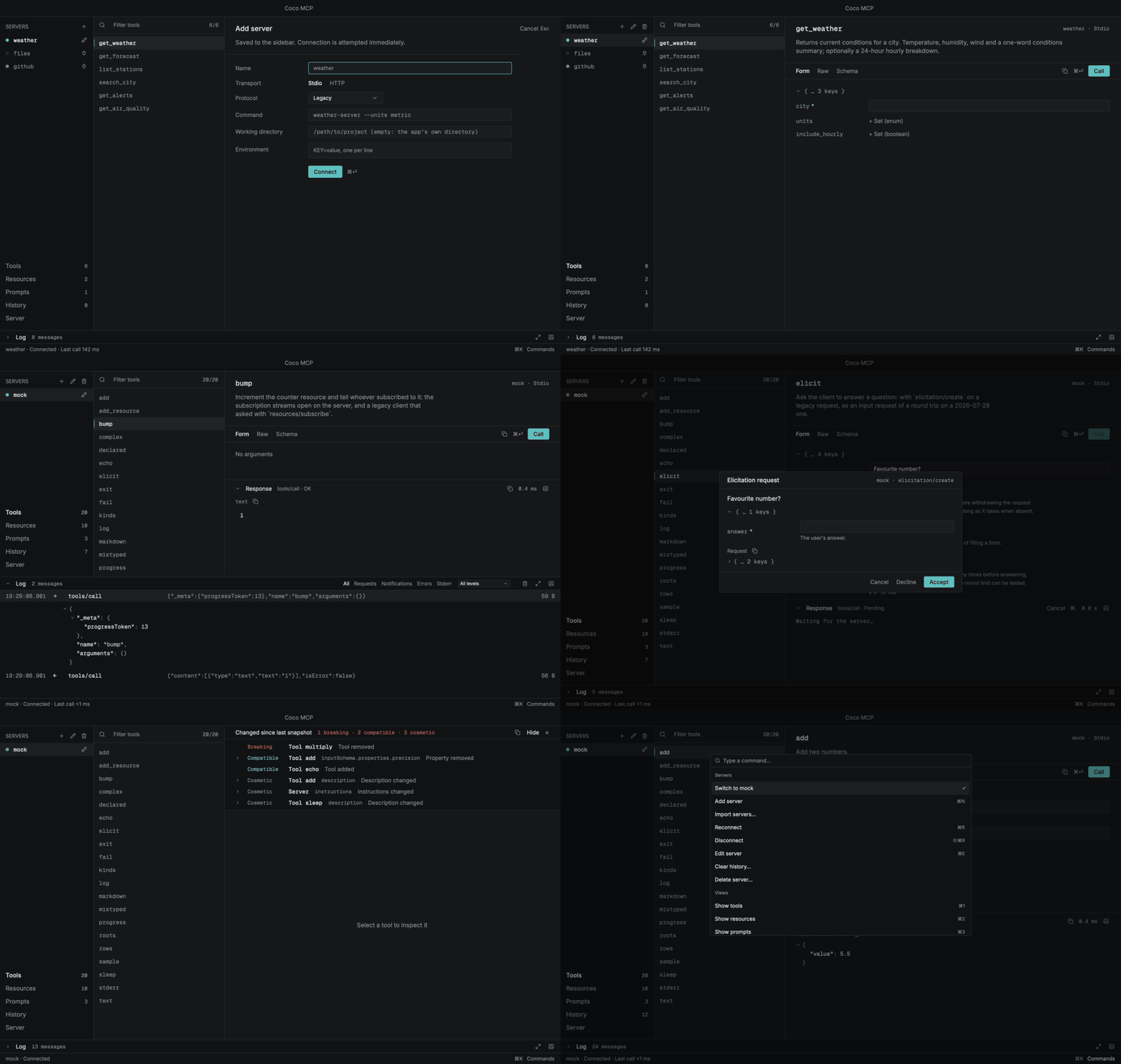
Why
I wrote Coco because the way I was inspecting MCP servers kept getting in
my way. I needed to send a raw JSON payload, not only what a form would let
me type. I needed several servers connected at the same time, each with its
own log. I needed the tool to stay fast with a long log and a large result
on screen, and I needed it to remember the servers and the calls from
yesterday. So Coco does those things first:
- Any payload. The Raw tab next to the generated form takes whatever
JSON you paste, checks it against the tool's schema before it is sent,
and copies the request as JSON-RPC orcurlexactly as it goes out. - Many servers at once. Every server in the sidebar has its own
session, wire log and history, all connected together; switching is a
click or⌘K. - Fast, and still fast an hour later. A native binary drawn on the GPU,
where every list, tree and text builds only the lines in view, so a
result of a hundred thousand rows costs a frame what ten rows do. - Memory. Servers, calls and snapshots persist, a call can be replayed
or opened back in the form, and each connect is diffed against the last
snapshot so a breaking change in a server is noticed, not discovered.
The command line exists so the same things can be scripted, and so a
breaking change can fail a CI job.
Built in Rust, drawn by GPUI
Coco is a native program from the wire to the pixels, and that shows in
use:
- It starts in a blink and stays light. The window is a single native
binary: nothing to boot before the first frame, no runtime to install, no
browser process beside it. Memory stays flat through a long session,
since every table, log and tree is drawn from the model, not kept as
markup. - The UI is drawn on the GPU. The window is built with GPUI, the
engine the Zed editor is written in: a retained scene
rendered through Metal, Vulkan or DirectX. A log drawer with thousands of
messages, a schema tree with hundreds of nodes and a result of many
megabytes scroll at the frame rate, and every list builds only the rows in
view. - One core, two faces. The protocol client, the storage, the schema
forms, the diff and the export formats are plain Rust crates with no UI in
them. The command line and the window are two thin layers over the same
code, so what one shows, the other can script, and neither can drift
from the other. - The whole UI runs headless. Because GPUI can render without a
display, every screen in this README is produced by a test that drives
the real window against a mock server, and the animated tour above is
assembled from those frames. What you see is what the tests saw. - Rust end to end. No unsafe code, no
unwrapoutside tests, every
dependency under a permissive licence, audited in CI. Secrets
go to the OS keyring through native bindings; the database is SQLite,
compiled in.
What it does
- Connect to stdio servers (any command) and streamable HTTP servers, with
custom headers, bearer tokens or OAuth 2.1 (PKCE, dynamic registration).
Secrets live in the OS keyring, never in the database. - Speak either era of the protocol: the
initializehandshake (2024-11-05
to 2025-11-25) or the sessionless 2026-07-28 revision, chosen per server.
Every feature follows the version the server agreed to and what it
declared; one it cannot use stays on screen, disabled, and says why. - Browse tools, resources, resource templates and prompts with an inline
filter and keyboard navigation. - Call tools through a form generated from the tool's JSON Schema
(nested objects, arrays, enums,oneOf), or edit the raw JSON. Arguments
are validated against the schema before they are sent. - See responses as collapsible JSON, text, Markdown or images, with
round-trip times, in a panel of their own under the form, split by a
separator you drag, and every wire message in a filterable log drawer (⌘J,
zoomed over the columns with⌘⇧J),
where rows unfold, each on its own, into the same tree as a response,
and a toggled row moves to the top of the drawer. A reconnect keeps
the previous connection's messages above a separator, so the reason a
server stopped is still there. - Answer server-initiated requests: elicitation forms, sampling and
roots are shown as dialogs instead of being auto-rejected. - Remember every call. The History view replays a call or loads its
arguments back into the form; its filter matches a call's name, arguments,
result and error, so one word finds a call in a long history. The bin
above the list empties it after a confirmation; the bin on a call deletes
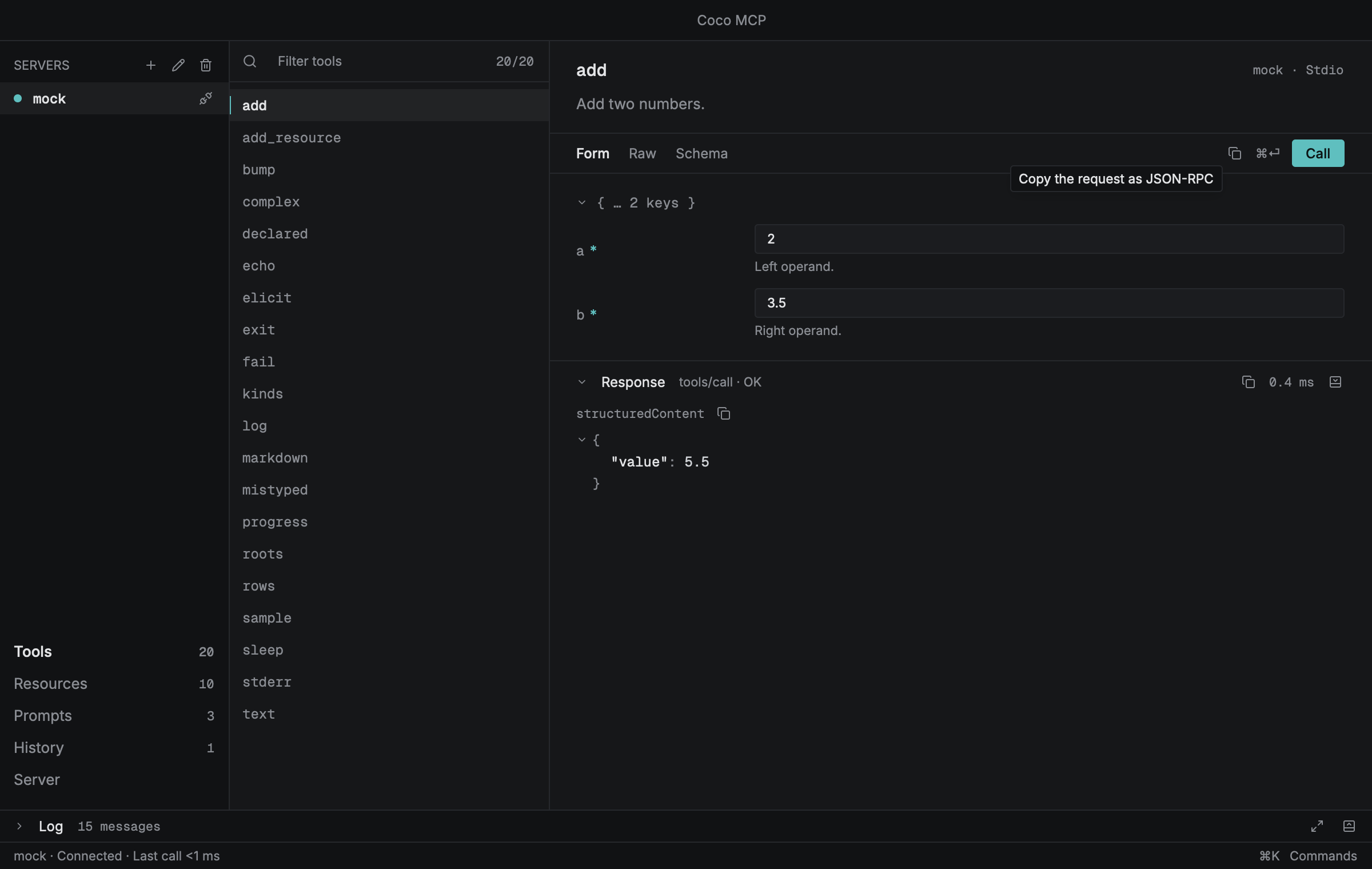
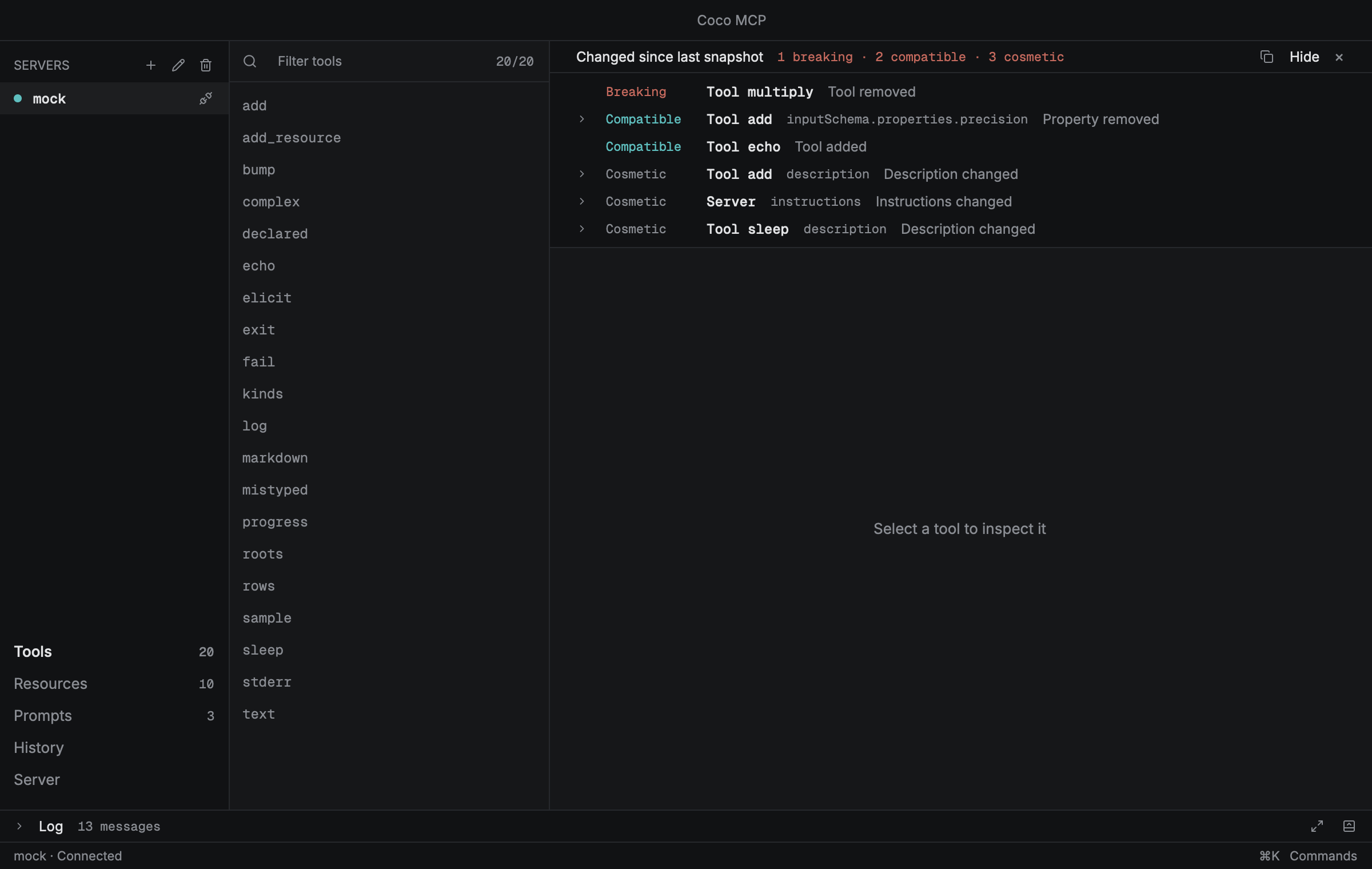
that call alone. - Notice changes. Each connect is compared with the last stored snapshot
and a banner classifies every difference as breaking, compatible or
cosmetic, direction-aware for input and output schemas. - Take it away. Right-click any node of any tree to copy its value, its
path or its key; copy a whole response, a tool's schema, a request as
JSON-RPC or ascurl; export the snapshot, the wire log, the call history
and the client config to files. Bearer tokens are redacted everywhere
except the one action named for them. - Bring it in. Import an
mcpServersfile from another MCP client and
every server it names is added at once, with any token it carried moved
into the keyring. - Script it with
coco-mcp --cli: snapshot, call, read, prompt, diff
(exit 1 on a breaking change) and export the saved servers as anmcpServersblock.
 |
 |
Install
Every release ships prebuilt binaries for macOS (arm64 and x86_64), Linux
(x86_64) and Windows (x86_64), built by the release workflow from the
tagged source, so installing takes seconds. Building it yourself is the
other option.
Quick install
Homebrew, on macOS and Linux, installs the binary of the latest
release and brew upgrade coco-mcp follows new ones:
brew install camiloazula/coco/coco-mcp
The tap lives at
camiloazula/homebrew-coco.
npm, on macOS, Linux and Windows, runs the binary of the latest release
without installing anything else; npm install -g coco-mcp keeps it:
npx coco-mcp
The package is a small shim over one binary package per platform, and
nothing is compiled on install; it lives at
camiloazula/coco-mcp-npm.
The release archive, on any platform including Windows: download the
one for your system from
the latest release,
check it against SHA256SUMS, and put coco-mcp somewhere on your PATH.
A file saved by a browser is quarantined on macOS and refused until you
allow it under Privacy & Security in System Settings, or clear the mark:
xattr -d com.apple.quarantine coco-mcp
Fetching the archive with curl sets no such mark. Windows asks once in
the same way; "More info", then "Run anyway".
From source
Cargo (Rust 1.90 or newer) builds the current main on your machine;
add --tag vX.Y.Z for a release:
cargo install --locked --git https://github.com/camiloazula/coco-mcp coco-mcp
--locked builds with the exact dependency versions in the committedCargo.lock, the set the tests and the licence audit ran against. To
update a Cargo install, run the install command again; cargo install --list shows what is installed and from which commit, and cargo uninstall coco-mcp removes it. Building needs a C toolchain and the system libraries
GPUI and the keyring link against; the CI workflow in.github/workflows/ci.yml lists the packages it installs.
Two modes
However it arrived, it is one binary, coco-mcp:
coco-mcp # the window (`--desktop` says the same)
coco-mcp --cli --help # the command line; every command follows --cli
From a checkout, just run opens the window and just coco --help the
command line.
The desktop mode
coco-mcp alone, or with --desktop, opens the window. Press ⌘N (or the+ in the sidebar) to add a server. A stdio server is a
command line, such as filesystem-server --root /tmp,
an optional working directory and optional KEY=value environment lines.
The line is split the way a shell splits
it, so an argument with a space in it is quoted ("my notes"), but it never
runs through a shell: nothing is expanded. An HTTP server is a URL plus
optional headers and an auth mode. A server that is not connected shows that
form as its pane, so it can be connected as it is or changed first; a connect
that failed, or a session the server ended, leaves the reason under the
fields, and a server that refused an OAuth login also offers Authorize;⌘E moves the keyboard into it. For a connected server, the pencil next to
the + (⌘E), or Settings at the end of the Server view's list, opens the
same form prefilled; Save & reconnect saves the settings and starts a new
session. The lists of a server that is
not connected are the ones its last connection declared, shown faint until it
connects again. The bin deletes the selected server after a confirmation.
Each icon shows its action on hover. The plug at the end of a server's row
connects it, or disconnects it when it is connected; a double-click on the
row does the same.
Protocol eras
The server form's Protocol row chooses how the server is reached:
- Legacy (the default) starts with the
initializehandshake, offers
2025-11-25 and accepts any older version the server answers with. - Auto asks with
server/discoverfor 2026-07-28 and falls back to the
handshake when the server does not speak it. - Modern uses 2026-07-28 only, and says so when the server cannot.
The Server view names the agreed version and its era (Protocol 2026-07-28 · Modern). On a modern server the app works the same from the outside, by
the revision's own means: sampling, elicitation and roots requests come
inside a call and open the same dialogs; list changes and resource updates
arrive on a subscriptions/listen stream the app keeps open; the log level
travels with each request, and the server logs only while one runs; saved
roots reach the server when it asks, with no change notice; and nothing
pings the server, since the revision has no ping. Log level, sampling and
roots carry a quiet "Deprecated in 2026-07-28" where they are used.
The Server view also holds the roots offered to the server, which can be
edited there, the snapshots stored for it, any two of which can be compared
in the change banner's terms, and the settings a connected server accepts
(log level, subscriptions).
A feature that the agreed version or the server does not support is never
hidden: its control is dimmed, its reason shows on hover ("The server doesn't
offer resource subscriptions", "Connect to use this") and appears in the
status bar when it is pressed.
Keyboard:
| Key | Action |
|---|---|
⌘K |
Command palette (switch server, views, connect, edit, theme, log) |
⌘N |
Add server |
⌘E |
Edit the selected server |
⌘⏎ |
Call the tool, read the resource, get the prompt, or replay; in the server form, connect |
⌘. |
Cancel the running request; the server is told |
⌘1 … ⌘5 |
Tools, Resources, Prompts, History, Server |
⌘J |
Show or hide the log drawer (the panel button at the right of its header does the same, collapsed or not) |
⌘⇧J |
Zoom the log drawer in over the columns, or out again (the arrows button does the same) |
⌘R / ⌘⇧R |
Connect or reconnect / disconnect (the plug on the server's row does the same) |
⌘⌫ |
Delete the selected server (asks first; the bin next to + does the same) |
⌘⇧C |
Copy the whole response |
⌘T |
Dark or light theme (remembered) |
⌘Q |
Quit |
↑ ↓ |
Move in the focused list; ⏎ moves into the detail, or connects the selected server in the sidebar |
⏎ / Esc |
In a dialog: answer or confirm / cancel |
Esc |
Close the copy menu, a confirmation, a pending server request, the palette or the server form, whichever is open; the log drawer stays |
The application menu has "About Coco MCP", which opens a small
window with the version, the commit and date it was built from, the licence,
and links to the source repository and the issue tracker. The File, Edit,
Server and View menus carry the actions of the shortcuts and the palette
(the call itself stays on ⌘⏎ and in the palette); an item that cannot run
for the selected server is disabled. The Server menu also clears a server's
call history and forgets its stored credentials, each after a confirmation,
and the palette alone clears the log.
Getting servers in
File > Import Servers… reads an mcpServers file, the block MCP clients
keep their server lists in, and adds every server it names. The protocol
specifies the wire format, not the config file, so this is a convention
rather than a standard: the reader takes the entries under mcpServers,
under servers, or a bare object, which covers what clients write in
practice. Nothing is connected: an imported file can name a dozen servers, and
spawning a dozen processes is not what an import should do. Press ⌘R or
the Connect button on the one you want.
A name already in the sidebar is skipped rather than overwritten, and an
entry that describes neither a command nor a URL is reported instead of
silently dropped. A server the database could not write is counted as not
saved, and the status bar says why. An Authorization: Bearer header is
moved out of the headers into the keyring, since ServerSpec keeps only
non-secret headers; a placeholder such as the <token> this app exports
leaves the server without one, which the import summary counts and the
edit form fills in. An entry configured for SSE is added as streamable
HTTP, with a note, since that is the only HTTP transport the app speaks.
coco-mcp --cli import-config <file> does the same without the window.
Getting data out
A debugger is only useful if what it shows can leave it, so everything on
screen has a way out.
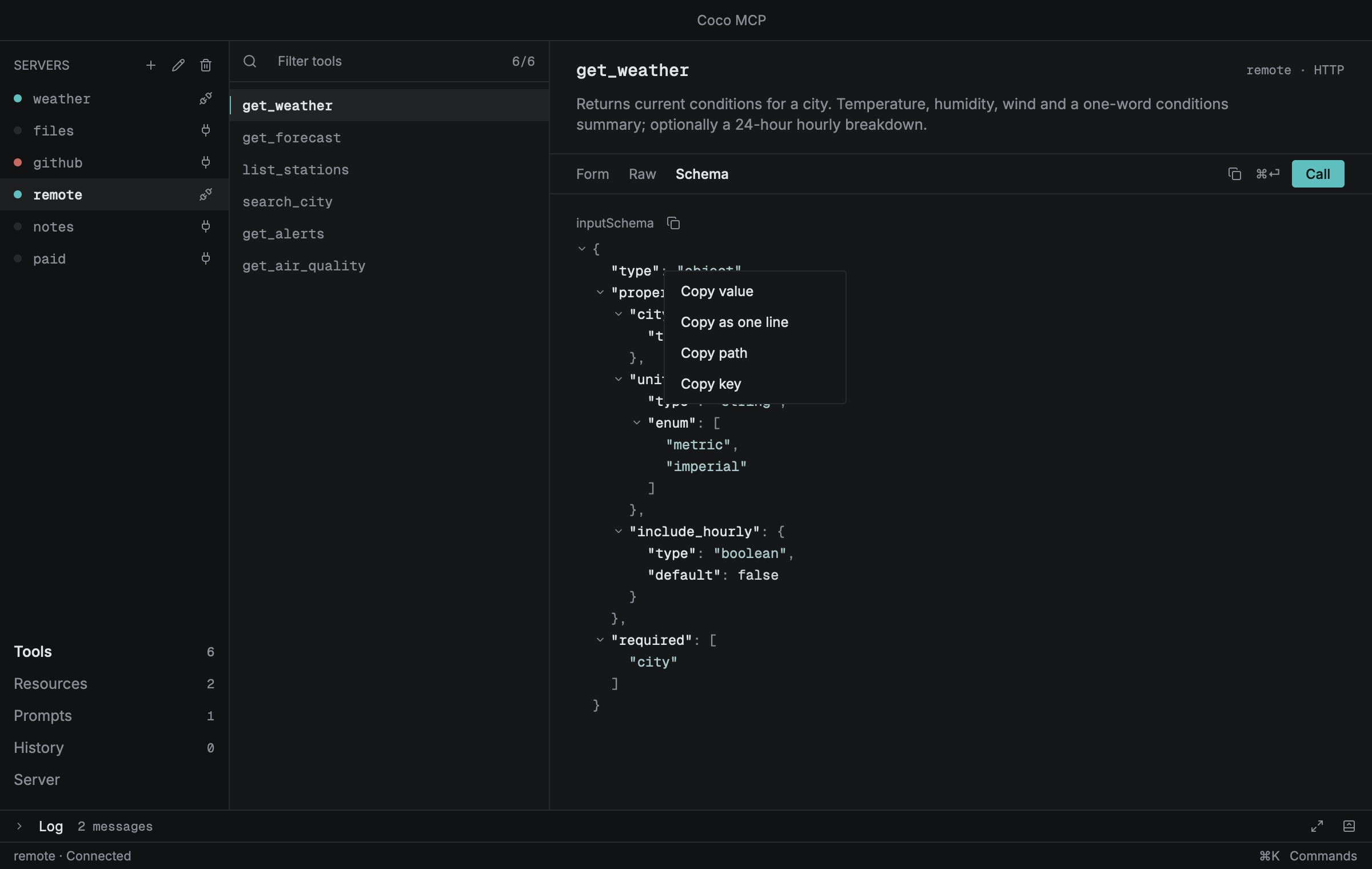
- Right-click any line of any JSON tree for its value, the same value on
one line, its path ($.content[0].text) and its key. A string copies as
its text, not as a quoted JSON literal. - Right-click a log row for its payload, for the whole JSON-RPC frame
with its id, for the line as the drawer shows it, and, when the app sent
it in full to an HTTP server, for thecurlthat would send it again.
None of it needs the row expanded. A server in the sidebar copies its
client config the same way, and a text or resource block in a response
copies its text or its URI. - The copy icon next to a section copies that whole value: the response,
structuredContent, a tool's input or output schema, a history call's
arguments, a server request, a diff's before and after. The one in the
toolbar copies the request as it stands, before it is sent. - The File menu writes four files through the save panel: the snapshot
(.json, the same artefactdiffcompares, so it works as a
committed baseline), the wire log and the call history (.jsonl, one
message or call per line), and themcpServersconfig. - A binary resource has a save button under it, which is the only way to
get the bytes of a PDF or an image out of aresources/read. - The diff banner copies its change list as a Markdown table.
curl output carries the two headers streamable HTTP requires and posts a
single JSON-RPC message; a server that keeps sessions will want aninitialize handshake first. A bearer token is written as $MCP_TOKEN and
the client config as Bearer <token>: the real value only ever reaches the
clipboard through "Copy Bearer Token" in the Server menu.
Data lives in coco.db under the platform's data directory forcoco-mcp.
What to know before pointing it at a server
Coco MCP runs what you give it and shows what comes back, so a few things
are worth knowing:
- A stdio server is a process started as you, with your environment plus
the lines you add, and it can do anything you can. Disconnecting kills
that process and closes its input; a program it started in turn, and that
ignores the closed input, can outlive it. - Bearer tokens and OAuth credentials go to the OS keyring. Everything else
in a server's settings is stored incoco.dbas typed: headers other
thanAuthorization, and environment variables unless their name ends in_TOKEN,_SECRETor_API_KEY, which the app refuses to store. So are
every call's arguments and results. The file is created readable by you
alone where the filesystem has permission bits. - A plain
http://server gets its bearer token in clear text. The CLI
warns; the app does not stop you. - A server can ask you to open a URL (a URL elicitation) and, through an
OAuth flow, name the page you sign in on. OnlyhttpandhttpsURLs are
opened, the dialog shows the URL first, and nothing is opened without your
answer. Links inside a Markdown response open in the browser when clicked. - A server can only claim what it returns; nothing it sends is executed
here. A response of any size is drawn a screen at a time, lists are read
for at most a thousand pages, and a child's stderr is kept a line at a
time.
The command-line mode
Everything after --cli is the command line, as it is:
coco-mcp --cli snapshot stdio -- some-server --verbose    # print tools/resources/prompts
coco-mcp --cli snapshot --protocol auto https://example.com/mcp
coco-mcp --cli snapshot https://example.com/mcp --oauth --out a.json
coco-mcp --cli call stdio:some-server add --args '{"a": 2, "b": 3}'
coco-mcp --cli read stdio:some-server file:///etc/hosts
coco-mcp --cli prompt stdio:some-server greet --args '{"name": "Ada"}'
coco-mcp --cli --db coco.db history --server "some-server" --limit 20
coco-mcp --cli diff a.json b.json --text                   # exit 1 when breaking
coco-mcp --cli --db coco.db diff saved:weather~1 saved:weather
coco-mcp --cli --db coco.db export-config                  # mcpServers block
coco-mcp --cli --db coco.db import-config ./mcp-servers.json
A live source is stdio:<command>, stdio -- <command> [args] or anhttp(s):// URL (-H 'Name: value' or -H Name=value, --bearer-env VAR,--oauth; the HTTP flags are ignored for a stdio source). snapshot anddiff also take a snapshot file, or saved:<name>[~N] for a snapshot
recorded with --db, where ~N counts back from the newest (saved:weather
is the latest, saved:weather~1 the one before). diff takes no stdio --
form, since its two sides are positional; quote the command into a stdio:
source instead. call, read and prompt need a live server. A snapshot
missing a list that failed is printed but not recorded.
Exit codes: 0 ok, 1 breaking change, 2 operational failure, which for diff
includes a list one side could not read and so was not compared; a breaking
change among the lists that were compared still exits 1. A tool that answers
with isError prints its result and exits 2.
stdio:<command> is split the way a shell splits a command line: quotes
group and a backslash escapes, an unquoted # starts a comment, and nothing
is expanded, so a path with a space in it goes in quotes
(stdio:'/opt/my tools/server'). The words after stdio -- are passed as
they are. --db saves a live server under the command line its Connecting
line prints, with each word that needs it quoted (srv '--port=3000'), and
that line is a stdio: source for the same server. saved:, history --server and export-config --server find it by that name or by any other
spelling of the same command line (srv --port=3000); two saved servers
with the same command line are reported, not guessed between.
--protocol legacy|auto|modern picks the era for a live source, as the
app's Protocol row does; without it a server saved with --db connects in
the mode it was saved with, and any other in legacy. A new server saved by--db keeps the mode it was first connected in.
The window asks you about sampling, elicitation and roots through a dialog,
and a server saved from the command line gets that same policy; the command
line itself has nobody to ask, so it refuses sampling, declines elicitation
and advertises no roots, whether the server asks with a request of its own
or inside a call.
Results go to stdout as JSON (--compact for one line); a snapshot carries adigest, and a call, read or prompt result an _elapsedMs. snapshot --out
writes the file instead, diff --text prints a plain listing, and --cli
alone prints the help. Progress, warnings and errors go to stderr as
cargo-style status lines, so coco-mcp --cli snapshot … | jq stays clean; --events
adds every wire message and state change to them. Colour follows the
terminal and honours NO_COLOR; --color always|never|auto overrides it.--timeout SECS (default 60) bounds each request, and --db also records
every call, read and prompt, which is what history lists.
Development
just              # list every recipe
just check        # fmt, clippy -D warnings, tests and cargo-deny, the binary included
just test-app     # the binary's unit tests, command-line tests and headless flows (builds the mock server)
just clippy-app   # clippy for the binary and its GPUI views
just mock         # run the hermetic mock MCP server, e.g. `just mock --schema v2`
just screenshots  # headless UI flows against the mock server (macOS); also writes tour.gif
The workspace is split into UI-free crates (mcp-core, mcp-schema-form,mcp-store, mcp-auth, mcp-diff, mcp-exchange, mcp-mockserver), the
command-line library (apps/cli, package coco-cli) and the one binary with
the desktop views (apps/desktop, package coco-mcp). CONTRIBUTING.md lists the constraints,
the pinned stack and the engineering notes. The headless screenshot test
drives the real UI against the bundled mock server, writestarget/screenshots/, assembles the README's tour.gif from a fixed list of
those renders, and fails if the mock server has not been built.
Licence
Copyright (c) 2026 Camilo Azula. Licensed under either of
- Apache License, Version 2.0 (LICENSE-APACHE), or
- MIT license (LICENSE-MIT)
at your option. Unless you explicitly state otherwise, any contribution
intentionally submitted for inclusion in the work by you, as defined in the
Apache-2.0 license, shall be dual licensed as above, without any additional
terms or conditions.
The whole stack is open source. Every dependency is under a permissive
licence on the allow-list in deny.toml: MIT, Apache-2.0, BSD-2-Clause,
BSD-3-Clause, MPL-2.0, ISC, Zlib, and a few public-domain-style
dedications (Unicode-3.0, 0BSD, MIT-0, CC0-1.0, bzip2-1.0.6). No GPL, LGPL,
AGPL or source-available licence is in the build; cargo deny check licenses
enforces this locally and in CI, and a crate offered under a choice of
licences is taken under the permissive one. The bundled fonts,
Inter and Geist Mono,
are under the SIL Open Font License 1.1 (their licence texts sit next to
them in apps/desktop/assets/fonts/); no proprietary system font is used.
The icon and the coco mark in apps/desktop/assets/ are part of this
project and carry the same licence as the code. The UI engine is the
published gpui-pre crate (Apache-2.0); no code is copied from the Zed
repository.
Notice
This software is provided "as is", without warranty of any kind, express or
implied, including but not limited to the warranties of merchantability,
fitness for a particular purpose and non-infringement. The author accepts no
responsibility or liability for how it is used or for any effect, loss or
damage arising from its use, in whole or in part. It launches the commands
you give it, connects to the servers you point it at, stores what they
return and sends the credentials you configure; you are responsible for what
you connect it to and for what it does on your behalf. Use it at your own
risk. See the licence texts above for the full terms.
Yorumlar (0)
Yorum birakmak icin giris yap.
Yorum birakSonuc bulunamadi