deskfolk
Health Warn
- License — License: MIT
- Description — Repository has a description
- Active repo — Last push 0 days ago
- Low visibility — Only 6 GitHub stars
Code Fail
- process.env — Environment variable access in apps/daemon/scripts/build-sidecar.ts
- spawnSync — Synchronous process spawning in apps/daemon/scripts/dev-remote.ts
- process.env — Environment variable access in apps/daemon/scripts/dev-remote.ts
- process.env — Environment variable access in apps/daemon/scripts/tool-selection-eval.ts
Permissions Pass
- Permissions — No dangerous permissions requested
No AI report is available for this listing yet.
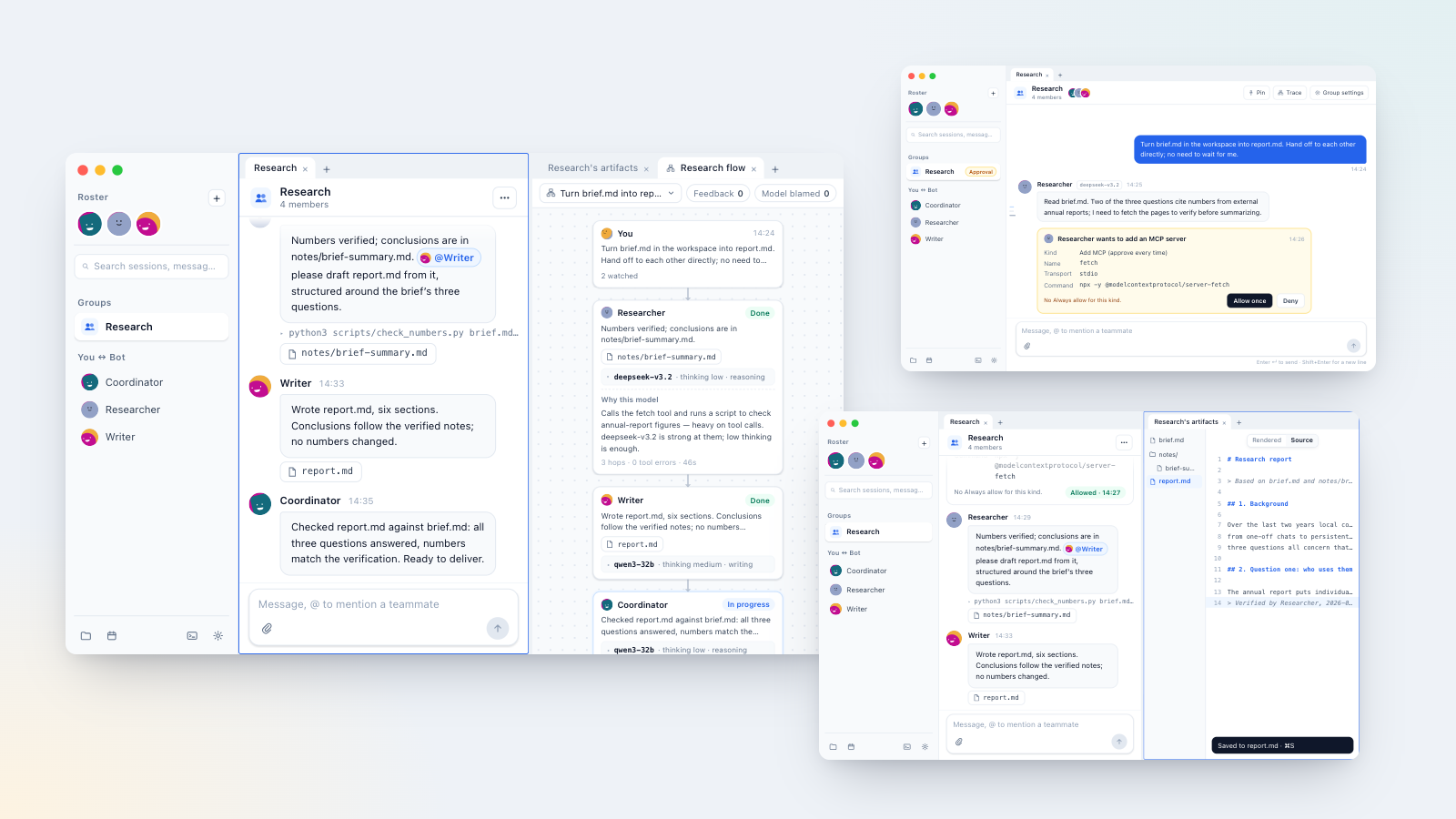
The AI teammates you'd want, on your own Mac: persistent bots in chats and groups, a split-pane desktop workbench with terminals, a live flow board for every job, per-turn model choice that says why, and experimental remote access. Bring your own model endpoints and MCP tools. Alpha.
Deskfolk
Persistent AI teammates, organized by conversation, on your own Mac.
Website · Download alpha · 简体中文




What it does
- Teammates, not throwaway chats. Bots have names, duties and boundaries. They chat one to one, join groups, get
@mentioned and hand work to each other. When one bot goes off to ask another, that is its own conversation, opened from the message that prompted it and read-only to you. - Everything stays on your Mac. Window, daemon, sessions and one shared workspace folder are local. No project-run cloud.
- Bring your own models and tools. Any OpenAI-compatible endpoint; MCP servers over stdio or Streamable HTTP, available to every bot.
- One job reads as a flow. A group, a direct chat and a Bot-to-Bot aside that share a work dir open the same board, drawn by who woke whom — a line that names three Bots branches three ways — with a card per turn and the file that turn handed over unfolding after it, read only. Each Bot card names the model, thinking level and message kind its turn ran on; click that line to unfold the reason, the feedback and the review under the card, and the toolbar lights up the turns that drew feedback or blamed the model. Opening it from a message lands on that message's card.
- Model choice is made per turn, and says why. Before each turn an agent picks the model and thinking level for that bot and leaves a one-line reason. When a correction runs its course it reviews what actually went wrong — the model, the task, or the way you asked — and only a verdict against the model is kept as that bot's experience. A turn also records how many hops it took and how many tool calls failed, and a closed chain may leave one memory, or a revision of a skill the bot already has, for the next time. Every turn's choice, outcome and feedback reads back on that turn's card in the flow, and per conversation through the local API.
- A terminal at hand, and commands you can watch. Open your own shell session in the app and run something that stays up, like
pnpm dev: the daemon holds it, so closing the window does not end it, and Quit and reopen puts it back where it was. It behaves like a Mac terminal — the ⌘← / ⌘⌫ editing keys, ⌘K to clear, ⌘F to find, ⌘-click to open a link, Copy and Paste on the right-click, colours that follow light and dark, a screen the daemon keeps so vim and friends come back whole when you reattach — and under zsh its tab follows you when youcd. A paired phone can watch it and type into it: the page is laid out for a thumb, with a two-row key bar for what a software keyboard lacks — Esc, Tab, ⇧Tab, ^C, ^D, ^V, a Ctrl that latches for the next key, arrows that repeat while held, Enter, Paste and a keyboard toggle — and tapping those keys never pops the keyboard up. When a Bot runs a command its output scrolls under that bubble while it runs, then folds to one line — command, exit code, how long. The Bot still gets the same one-shot shell it always had, classified per spawn and gated where it was gated; you are just no longer staring at ten minutes of silence. - A desktop window splits into panes. The main column divides side by side or stacked, as many times as it fits. A pane holds tabs: a conversation (with its one artifact preview and one flow board), a terminal, the routine calendar or the workspace. Drag a divider, or the junction where two meet to resize both ways at once; drag a tab to another pane, onto an edge to split there, or with ⌥ held to float it. Right-click anywhere in a pane to split it up, down, left or right, or use the View menu (⌘\ right, ⌘⇧\ down); ⌘W closes a tab, and closing a terminal tab leaves its shell running to reattach from "+". The current pane — where the keyboard is and what Stop acts on — is framed in the accent colour, and conversations side by side keep their own drafts, replies and attachments. The layout is remembered on this Mac only, and Quit and reopen brings back the split and the terminals in it. Narrow windows and phones stay one screen at a time.
- What waits on you shows on the list. There is no notification page: approvals, questions, and interrupted or failed turns are marked on the conversation's row. A macOS banner opens the conversation it is about, the Dock badge counts what you have not seen plus what is still waiting on you, and Settings → Notifications picks which events become banners, with quiet hours.
- Dangerous actions wait for you. New endpoints or MCP servers, anything outside the workspace and outbound network stop at an approval card. Keys go to Keychain, never into chat.
- Bots run the app. Create bots, form groups and configure endpoints or MCP by talking to one.
Get it
System requirement: macOS 13.0 (Ventura) or later, on Apple silicon or Intel.
Download the latest alpha from GitHub Releases: unsigned .dmg for Apple silicon and Intel. The app carries its own runtime and native helper, so there is nothing else to install — no Bun, no Node, no checkout. If Gatekeeper blocks the first launch, right-click → Open, or run:
xattr -dr com.apple.quarantine "/Applications/Deskfolk.app"
More detail: Gatekeeper FAQ · notarization path: docs/notarization.md (#10).
Updates: the app checks GitHub Releases in the background and shows a dot on the settings gear when a newer build exists. Settings → General → About lists the current version and opens the matching .dmg in your browser; while builds are unsigned there is no in-app installer.
Run from source (macOS 13.0+, Node 22+, pnpm 12.3.4, Bun 1.2+, Rust, Xcode Command Line Tools):
cd deskfolk
pnpm install
pnpm dev
First run: pick a workspace folder (missing folders are created), add an OpenAI-compatible endpoint and key in Settings, create the first bot from the sidebar, then let it hire the rest.
On phone-width screens, the messenger has Chats / Workspace / Settings navigation. Archived sessions are below the chat search field; appearance is in Settings → Preferences. Opening a conversation or a settings detail hides the bottom navigation. Switching away from an edited workspace file asks you to save or discard changes.
On a desktop window, a conversation's left edge carries a compact message index: hover a tick for the sender and text, click it to jump there, step through with the arrow keys, and load earlier history from its top. A conversation pane narrower than a phone lays out like a phone. A picture the app rendered — in a message, enlarged, in a preview, on the flow or in the composer — copies from its right-click menu, and a picture in a file preview enlarges when clicked, the way one in a message does.
On a phone, Settings → Models shows endpoint cards with a system picker for the default model. Open Models on a card to search and enable model names; Attributes opens a separate page for price, thinking levels and strengths. Changes save automatically, the footer shows their status, and Back returns one level at a time.
Experimental remote audio and video previews play while loading in message attachments, the workspace and flow outputs, and seeking loads the requested part. This requires a browser with Service Worker support and a host with byte-range support; other environments keep whole-file previews. The existing 50 MiB remote file limit and browser codec support still apply.
Daily and weekly routines
The calendar button at the bottom of the sidebar (beside search on a phone) opens the routine calendar: daily and weekly routines of Bots that have any, on one week grid, read only. A Bot with no routines is left off the chart. The roster filter is one searchable dropdown — by name or duties — and choosing a row hides or shows that Bot’s blocks. Each agenda row names that Bot, with the same portrait. A block is the rule unfolded, not a record of each run, and the clock on it is the execution Mac’s local time. Changing a time still happens in the Bot’s profile; a phone cannot drag.
Open a Bot’s profile (the Bot avatar/name → profile), then Routines → Add routine. The owner is that Bot. Enter a title and task instruction, choose Daily or Weekly with one or more weekdays, and pick a time. On a wide window, save, edit, pause/resume, and delete with confirmation all stay in the same card. On a phone, the routine count and Add routine sit in the Routines page header, and a routine opens as its own page without focusing a field: the time is the system time picker, the weekdays are a row of taps, and enabled is a switch. Pause and delete are not packed into the list row; delete sits at the bottom of that page, and Back returns to the routine list first. Sidebar search opens the matching routine’s Bot profile and its editor. A later search or dismissal cancels earlier pending navigation. Historical routines belonging to a deleted Bot remain retained but are marked unavailable in search. Confirmation dialogs keep keyboard focus inside, restore the invoking control on cancellation, and block dismissal while saving.
Times are civil times in the execution Mac’s local time zone, not the browser’s zone; there is no per-routine timezone or cron expression. The Mac must be awake and its runtime available. Recovery catches up only the latest missed occurrence, never every missed run; archived Bots do not run routines. Deleting or pausing a routine does not stop already-started work. Lists update live across clients and refresh after reconnecting. If another client edits a draft’s routine, load the latest version before saving; stale saves and deletes are rejected rather than overwriting it. Connection loss does not automatically retry a write—check the list after reconnecting. If a request result is unknown, Retry original request in the routine card resends only the original content and request ID, not later draft edits. Pending-payload warnings are not revision conflicts. After the request is no longer pending, the edited draft stays visible but cannot be submitted until you check the list and reopen the routine.
Status
Alpha, macOS only. What is live, in progress and out of scope: website · Roadmap · CONTEXT.md (domain language).
The shared remote-crypto package is an experimental, default-off prototype, not available remote access. A default-off Bun relay, native-gated daemon adapter, and hosted messenger PWA client now exist for isolated integration testing. Hosted production builds omit local discovery and the loopback bearer; public pairing stays off. A link that ends — the relay closing it, the Mac going away, a phone changing network — is noticed by the page itself and retried with backoff, including the silently dead link a browser never reports; nothing is queued while it is down, and coming back from a locked screen or the background tries again without waiting to be tapped, asking the Mac only for what changed meanwhile. Pictures arrive as scaled copies with the original one tap away. A remote connection has its own Files conversation: a file posted there is copied into the workspace inbox/, text stays as a note to yourself, and neither wakes a Bot; the desktop lists the same conversation. Web Push honors the daemon's proxy environment (https_proxy / HTTPS_PROXY, with ALL_PROXY fallback and NO_PROXY exclusions); see proxy setup. Optional Web Push is a generic pending-item reminder from the Mac; a notification click reconnects and returns to the chat list and never approves. In-app state lives on the conversation list; there is no notification page. The production daemon advertises push_settings_v2 with push_transport=policy_v2. Outbound Web Push send, subscribe and test require an open remote gate (activation / native / trust); unsubscribe stays available for cleanup. It does not stay on a temporary upgrade pause. Cold-start click from a signed installed package is still unverified (NATIVE_DELIVERY_QUALIFIED is false). A banner posts when the process has a bundle identity and the system permission is granted; that flag no longer disables the test. Enqueueing reports queued, not native-accepted. tauri dev re-executes inside a debug .app with the same com.real-bot.desktop identity, so Notification Center and an already granted system permission both apply. Hosted remote tests use the remote gate, contact, and subscription. This is not a ready remote product: independent security review (S-rev), physical iOS/Android home-screen WebAuthn (G-uv), physical L1, and physical home-screen Web Push (G-push) have not passed. See self-hosted deployment, bootstrap recovery and routing contracts, including the separate test:edge command for real local Caddy HTTP/HTTPS/WSS checks (Caddy 2.10.2 and OpenSSL required). Its tests include official Noise vectors and an independent Rust snow peer (pnpm test requires Cargo). See the protocol/API contract, including the single shared receipt digest with conditional headers and duplicate-filename ordering, now also consumed by local daemon receipts through the canonical-only workspace export. The daemon retains its stricter route and strong-SHA256 If-Match checks.
Contributing
Development guide · Contributing · Security. MIT licensed. Not affiliated with xAI / Grok.
Reviews (0)
Sign in to leave a review.
Leave a reviewNo results found