paddock
Health Uyari
- License — License: MIT
- Description — Repository has a description
- Active repo — Last push 0 days ago
- Low visibility — Only 5 GitHub stars
Code Basarisiz
- spawnSync — Synchronous process spawning in docs/record-demo/paddock-film/film.mjs
- os.homedir — User home directory access in docs/record-demo/paddock-film/film.mjs
- process.env — Environment variable access in docs/record-demo/paddock-film/film.mjs
- network request — Outbound network request in docs/record-demo/paddock-film/film.mjs
- network request — Outbound network request in docs/record-demo/paddock-film/stage.js
- spawnSync — Synchronous process spawning in docs/record-demo/record.mjs
- process.env — Environment variable access in docs/record-demo/record.mjs
- network request — Outbound network request in docs/record-demo/record.mjs
Permissions Gecti
- Permissions — No dangerous permissions requested
Bu listing icin henuz AI raporu yok.
Every Claude Code and Codex session on your machine, in one place. Formerly cc-sessions. Unofficial.
Paddock
Every Claude Code and Codex session on your machine, in one place.
Paddock was called cc-sessions until 2.8. An install from before moves over by itself the
first time the new version runs, and the cc-sessions command keeps working.
One place to see, close and resume Claude Code and
Codex sessions across every account on a machine, from
a local web page or the command line. It also adds, renames, re-logs-in, removes and
restores the accounts themselves.
An account is a config folder of one of the two tools (~/.claude, ~/.claude-work,~/.codex, ~/.codex-work, ...) with a name and a shortcut command. Each tool only sees
one account at a time; Paddock reads every account and shows the result together,
grouped by project folder, with the Usage view counting both.
It is a single small program with nothing else to install, for macOS, Linux and Windows.
It is an unofficial tool and is not affiliated with Anthropic or OpenAI.
See it
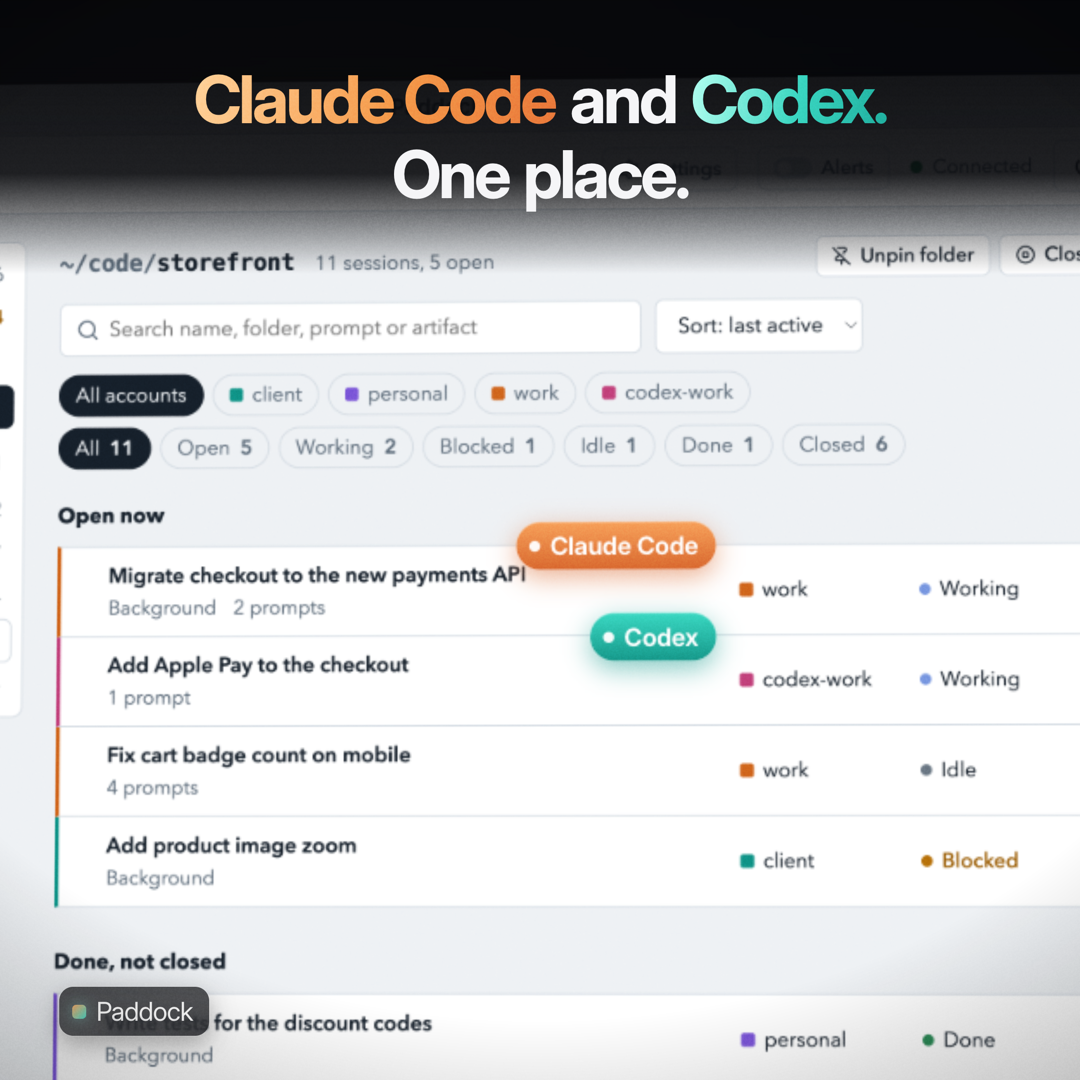
The 25-second film (docs/paddock.mp4) introduces 2.8: Claude Code and
Codex sessions side by side, search and resume across both, and tokens by model. The
one-minute film of 2.5 (docs/demo.mp4) shows the Finder layout, Usage,
Settings and accounts. Both use made-up demo data.
Install
macOS and Linux:
curl -fsSL https://raw.githubusercontent.com/barath-dev/paddock/main/install.sh | sh
Windows (PowerShell):
irm https://raw.githubusercontent.com/barath-dev/paddock/main/install.ps1 | iex
The installer downloads the program for your system, checks it against the release's
SHA-256 list, and asks a few setup questions. Each has a default, so pressing Enter through
them works:
- Command name — what you type to start it (default
paddock). - Port for the page (default
4777). - Clickable shortcut in Applications or the Start menu (default yes).
- Register the Claude Code folders it finds as accounts (default yes).
- Manage the
claude-<name>shortcuts that start each account (default yes). It shows
the one line it would add to your shell's startup file, and keeps a backup. - Keep it up to date automatically (default yes). See Updates.
Run paddock setup to change any answer later.
Coming from cc-sessions
Nothing to do: an install of cc-sessions updates itself to Paddock, and the first time it
runs it moves over by itself.
- The settings folder moves from
~/.config/cc-sessionsto~/.config/paddock. A link is
left at the old path, so the line your shell's startup file already has keeps loading
the shortcuts. On Windows,%APPDATA%\cc-sessionsbecomes%APPDATA%\paddock. paddockis added besidecc-sessions; both start the same program, which stays where
it was installed.- The app shortcut becomes Paddock, and fish's shortcut file
paddock.fish. PADDOCK_HOME,PADDOCK_PORTand the rest are read, and so are their old names,CC_SESSIONS_HOMEand so on.
The install line still works with the old address, which GitHub sends on to the new one.
Updates
From 2.6.0 on, Paddock keeps itself up to date. Once a day the server asks GitHub for
the latest release. When there is a newer one it downloads the program for your system,
checks it against the release's SHA-256 list, puts it in place and restarts on it.
Settings and sessions are not touched, and a close in progress finishes first.
After an update the page reloads and opens a What's new window (from 2.7.2): the
changes in every version since the one you had, newest first, with a link to all the
release notes. It shows once per update; Got it or Esc closes it.
- Turn it off in Settings › General › Updates, or answer no in
paddock setup.
With it off, the same place has Update now, andpaddock updateinstalls the
latest version from a terminal (--checkonly looks). - What's new in the same place shows the last few versions' changes at any time.
- Only the copy the installer put in place updates itself. A build from source is told
about new versions and left alone. - It uses the system's
curl(orwget, or PowerShell on Windows) and sends nothing but
the request for the latest release. - Versions before 2.6.0 cannot update themselves: run the install line once more.
Reporting problems
Settings › General › Report a problem (or the Report button on any error message,
or paddock report) opens a new GitHub issue filled in with the version, system,
Claude Code version, number of accounts and the last few error messages. It shows you all
of it first, and leaves out folder paths, session names, prompts and emails. You describe
what happened on GitHub before anything is sent. Suggest a feature is next to it.
Start and stop
paddock          # start the server if needed and open the page
paddock stop     # stop the server (same as Disconnect in the page)
The server runs in the background on http://127.0.0.1:4777, so the terminal can be
closed. Nothing starts at login. It stops by itself after 30 minutes with no page open,
and Disconnect (in the classic header, or Settings › General) stops it straight away.
Your Claude sessions keep running either way.
The page
The page has two layouts, picked in Settings › Appearance › Layout; it opens in the one
you used last. Both show the same sessions and accounts; alerts are in the classic layout
and token usage in the Finder layout.
Classic layout
- One list of every session in every account: pinned ones first, then the ones open
now, then saved conversations by when they were last active (or A–Z). - A folder tree beside it. Pick a folder to see only what is under it; pin one to keep
it at the top. Needs you lists sessions that are blocked, or finished in the last day
and not yet closed, and the browser tab shows how many. - Search covers names, folders, artifacts and what you typed in each conversation.
Account and status chips narrow the list. - Details open in a panel beside the list when you click a session: its prompts,
artifacts (links to claude.ai, which open for the Claude login that published them) and
the command that resumes it. - Actions, on each row as you point at it: rename, copy the resume command, pin, open
its folder in your code editor, and Close (stops the session, keeps its conversation)
or Resume (reopens it in a new terminal window). Tick open sessions to close several
at once. - Conversations that were opened and never used are hidden, with a link to show them.
- Alerts, in the header, show a desktop notification when a session starts waiting for
you or finishes. They need the page open in a browser tab.
Finder layout
A Finder-style browser of the same sessions: folders you open like folders, sessions as
files in them, accounts as tags in the sidebar.
- Icons, List and Columns views, back and forward, a path bar, and Recents, Needs you
and Open now in the sidebar. Click a column heading in the List view to sort by it
(name, status, account, last active, prompts, tokens or tokens per prompt); click it
again to reverse. Per prompt finds sessions that used a lot for each thing asked,
often ones going round in circles on the same problem. - Worth a look (in the sidebar, and as a badge on the session) lists sessions that may
have gone round in circles: the same error coming back after each fix, edits undoing
earlier edits, many tokens for little changed, or you saying it still isn't working. Only
sessions with real work in them are judged (20+ replies, 250K+ tokens without cache
reads, 5+ edits to the project), against your own usual. Quick Look says why; Not a
loop hides it and makes the check a little stricter from then on. - Quick Look (Space or double-click) shows a session's details and actions; a
right-click menu has the rest, including Open in VS Code (or Cursor, Zed...) for a
session's folder or a whole folder of sessions. - Keys as in Finder: arrows to move, Enter to rename, ⌘↑ for the folder above, ⌘[ and ⌘]
for back and forward, ⌘1–3 for the views, ⌘O to resume, ⌘⌫ to close (after asking),
⌘E to open in your code editor, ⌘, for Settings. - Usage shows the tokens your sessions used: today, the last 7 and 30 days, a calendar
heat map of every day, when in the week you use Claude, and totals by account, model
and session. Pick all tokens, without cache reads, or output only. The heat maps come in
blue, green, amber, purple, teal or your primary colour. 3D raises the calendar into
a lit 3D object, a block per day as tall as its tokens, with height lines and the busiest
day and today marked. Pick a view (Angled, Front, Top, Side, Last 30 days, or keys 1–5),
drag to turn it, Shift-drag to move it, ⌘-scroll to zoom, or show it full screen. Click a
day (or move to it with the arrow keys and press Enter) to see its tokens by kind, hour
and account, how it compares with its week and the year, and the sessions that used them.
Simple layout
A card for each project folder, and nothing else to learn. Pick it in Settings ›
Appearance › Layout; the page then opens on it (/simple).
- Cards: each shows the folder, the accounts used in it, how it is doing (
2 need you,1 working, or when it was last used) and its sessions, needing you first, then
working, then the latest. + N more opens the rest of a card's sessions. Projects
that need you come first, then working, then pinned, then the most recently used;
ones not used for 30 days fold under Show older projects. - One button per session: Open for a running one, Resume for a saved one. Its
⋯ menu has Rename, Pin, Copy command, Team, Open in your editor and Close. A
card's ⋯ pins the project to the top or opens it in your editor. - Account chips show one account's projects (the choice is remembered), the line under
them counts today's tokens, and Teams working appears while a team is running,
each opening its Team page. - Search (
/to start, Esc to clear) finds projects by folder, session names and
prompts.
The templates, theme and primary colour from Settings apply here as on the other layouts.
Every layout
- Rename a session with the pencil on its row, by double-clicking its name, or with
Enter in the Finder layout. The name is kept by Paddock and shown in the page and on
the command line; Claude Code and Codex keep their own titles. Clear the name to go back to that title. - Settings, from the classic header or the Finder sidebar:
- Appearance: the layout; Light, Dark or Match system; a template (Mac, Classic,
Graphite or Paper, or each layout's own look); and a primary colour for buttons, links
and what is selected. These are kept in the browser. - Accounts: tool, login, plan, shortcut and folder of each account. Add (as a Claude
Code or a Codex account), rename, change login, remove and restore. Edit… opens one dialog for an account's name, alias,
colour (which marks it everywhere), login and removal. - General: updates (version, check now, automatic or not), report a problem
and suggest a feature, the code editor that folders open in, picked from the ones found on
this computer (VS Code, Cursor, Windsurf, Zed, VSCodium, Sublime Text, IntelliJ IDEA,
WebStorm, PyCharm, GoLand, RustRover, Android Studio), and disconnecting, which stops
the server.
- Appearance: the layout; Light, Dark or Match system; a template (Mac, Classic,
- From the keyboard in the classic layout, Skip to sessions is the first stop, the
arrow keys move through the list and the folder tree, and Esc closes the details.
Statuses: Working (busy on a task), Blocked (waiting for your input), Idle (open in
a terminal, doing nothing), Done (background task finished, not closed), Closed
(stopped through this tool, or stopped in Claude Code or Codex).
A Codex account's name is shown with a small Codex mark where the name does not
already say so.
Teams
Team, in a Claude Code session's details, opens a page that draws the session as a
team: the session itself leads, at the top, and its members, the sub-agents it can hand
work to, sit under it, each in the colour of its model (Opus, Sonnet, Haiku). A member's
box lights up and the line to it moves while it is running, and the list under the
drawing shows every sub-agent the session started, with its task, model and tokens.
Sub-agents it started that are not members, such as Claude Code's own Explore, are
drawn on a row of their own.
- Add a member with a name, a model and one sentence on what it does, which the lead
reads to decide when to hand work over. Instructions are optional. Members are Claude
Code agent files,<project>/.claude/agents/<name>.md, so any session started in that
folder can use them; one already running in a terminal sees a new member once it is resumed. Editing
a file keeps what else its front matter says, such astools. - Report review sets up a team in one click: the lead analyses the report,
scorer
on Sonnet scores it andanswer-checkeron Haiku checks the answers. - Run the team: say what the team should work on and pick the lead's model (Opus by
default). Claude Code runs it in the background (claude --bg): a closed session is
continued, and for one open in a terminal the team starts as a new session in the same
folder, which the page then follows. Either way Claude Code starts afresh, so it sees
the members as they are now. The folder must be one you have trusted in Claude Code.
If the lead stops to ask you something, its box says so and opens it in a terminal.
Copy the prompt instead gives the same brief to paste into a session yourself. - Remove moves the member's file into Paddock's
removed-agentsfolder rather than
deleting it.
Teams, in the Finder sidebar, watches every team at once. It counts the teams working
right now, and its view shows each Claude Code session whose sub-agents worked in the last
day: the lead with its model and how it is doing, and each sub-agent with its model and
what it is working on, pulsing while it runs. Sub-agents that are not members of the team
have a dashed outline. Working teams come first. It updates every few seconds, and
Open team opens that team's page.
What it never does
- It never deletes or moves anything under an account folder. The test suite checks this
on every run. - Remove account only hides the account and drops its shortcut. The folder, login and
history stay on disk, and Restore brings it back. - Close only stops a session. Its transcript stays and it can be resumed.
- Renaming an account or its shortcut changes nothing inside the account folder.
- Renaming or pinning a session changes nothing in its transcript. Names and pins are kept
intitles.jsonandpins.json. - The one place it writes outside its own folder is a project's
.claude/agents, when you
add or change a team member. What the lead does is kept inteams.json. - Its own records are rewritten in place with the previous version kept as
<file>.bak.
The only files it removes are its own launchers: its pid file, a command link it created
when you change the command name, and on Windows the claude-<name>.cmd orcodex-<name>.cmd launcher of an account you renamed or removed. None of them hold data.
Claude Code itself deletes conversations after cleanupPeriodDays (30 by default) without
activity. Settings › Accounts shows that number per account. To keep history longer, setcleanupPeriodDays in that account's settings.json. Codex keeps its conversations until
they are deleted.
Command line
paddock list [--folder PATH] [--account NAME] [--open | --closed | --all] [--json]
paddock history [--folder PATH] [--account NAME] [--by-date] [--json]
paddock close <id>... | --folder PATH | --account NAME  [--yes]
paddock rename <id> NEW NAME | --reset
paddock account list [--removed]
paddock account add NAME [--tool claude|codex] [--alias A] [--dir PATH] [--no-login]
paddock account rename NAME NEW-NAME [--alias A]
paddock account login NAME
paddock account remove NAME [--yes]
paddock account restore NAME [--alias A]
paddock setup [--yes] [--command NAME] [--port N] [--shortcut | --no-shortcut] [--no-import] [--no-aliases] [--no-auto-update]
paddock update [--check]
paddock report
Session ids are shown as account:id. close asks before closing, asks separately for
each interactive session, and skips the session it is run from. --yes only skips the
question for background sessions. history groups by folder; --by-date prints one list,
newest first. rename takes the id history shows, and --reset gives a session its own
title back. account add makes a Claude Code account unless --tool codex says otherwise;
a Codex account's folder defaults to ~/.codex-NAME and its shortcut to codex-NAME.
A Codex session's short id is the end of its id, not the start: Codex ids begin with the
time they were made, so conversations started together share their first characters.
Differences between systems
| macOS / Linux | Windows | |
|---|---|---|
| Settings and records | ~/.config/paddock |
%APPDATA%\paddock |
| Program | ~/.local/share/paddock/paddock (an install from before 2.8 keeps ~/.local/share/cc-sessions/cc-sessions) |
%LOCALAPPDATA%\paddock\paddock.exe (from before 2.8: %LOCALAPPDATA%\cc-sessions\cc-sessions.exe) |
| Account shortcuts | aliases loaded by one line in ~/.zshrc or ~/.bashrc (fish: a conf.d file) |
claude-<name>.cmd and codex-<name>.cmd launchers on your PATH |
| Closing an interactive session | asks it to exit, and leaves it if it has not within 5 seconds | ends it immediately; Windows offers no gentler way |
| Running Codex sessions | found from the running processes (ps, and lsof on macOS) |
not found yet; saved Codex conversations are listed and can be resumed |
| Resume opens | iTerm or Terminal; on Linux the first terminal program found | Windows Terminal, else Command Prompt |
On macOS, Resume and Log in type their command into the new iTerm or Terminal window, asenv CLAUDE_CONFIG_DIR=<folder> claude … (or CODEX_HOME and codex), after clearing
the line. A key pressed while the window comes to the front cannot change which account
the command runs as; at worst the command is not found.
On a Linux machine with no desktop (for example over SSH), Resume cannot open a terminal
window; the Copy button still gives the command. Claude Code running inside WSL is covered
by installing the Linux version inside WSL.
The Windows program is not code-signed, so antivirus software may occasionally flag it.
Files it keeps
In the settings folder above:
| File | Purpose |
|---|---|
config.json |
Answers from setup: command name, port, shortcut, idle limit, automatic updates. |
accounts.json |
Account registry: name, tool, folder, shortcut, colour, removed flag. |
aliases.sh |
Generated account shortcuts (macOS, Linux). |
icon.png, icon.ico |
Icon of the clickable shortcut (Linux, Windows). |
closed.json |
Sessions closed through the tool. |
titles.json |
Names you gave to sessions. |
pins.json |
Sessions and folders you pinned. |
teams.json |
What each team's lead does, as written on the Team page. |
removed-agents/ |
Team members' files, moved here when they are removed from a team. |
history-cache.json |
Rebuildable index of saved conversations, with their token counts. |
ui-token |
Access key for the web app (readable only by you). |
ui.pid, ui.log |
The running server's pid and its log. |
update.json |
The last update check, and the last update installed (for What's new). |
idleMinutes in config.json sets how long the server waits with no page open before it
stops; 0 keeps it running until you stop it.
The layout, theme, template and primary colour are kept in the browser, not here, so
another browser starts with the defaults.
How the server is protected
The page can end processes, so the server listens on 127.0.0.1 only, requires the token
from ui-token on every API call, rejects requests whose Host is not127.0.0.1:<port> or localhost:<port>, and only accepts JSON POSTs for changes.
How sessions are read and closed
Claude Code
- Sessions come from
claude agents --json --all, run once per account. The default
account runs withCLAUDE_CONFIG_DIRunset; the others with it set to their folder. - Background sessions are closed with
claude stop <id>. For an interactive one, the tool
first checks that the process id still belongs to that session, then ends it. - Claude Code has no "closed" state for interactive sessions (they vanish once their
process ends) and leaves a finished background session asdoneafterclaude stop.closed.jsonis what keeps both listed as closed. - History is read from
<account>/projects/<folder>/<session>.jsonl, read-only.
Artifacts are the links Claude Code records there when a conversation publishes or
opens one. Sub-agents' conversations, under<folder>/<session>/subagents/, are not
listed as sessions of their own. - Token counts come from the usage Claude Code records on each reply in those files. A
reply written over several lines is counted once (Claude Code's own/statscounts it
once per line, so its totals come out higher). A sub-agent's replies count with the
session that started it. Days older than an account'scleanupPeriodDaysare empty
because Claude Code has deleted them.
Codex
- Codex has no command that lists its running sessions. Paddock looks for running
codexprograms, leaving out its background service (codex app-server), its helpers
(codex-code-mode-host,codex-exec-server) and commands likecodex login. Since
Codex 0.160 a session's turns run in that background service, which writes the
conversation file, so a session is matched by the conversationcodex resumewas given,
or by its folder (-C, else its own) and the newest conversation there since it
started. Several windows in one folder are matched newest first, each to a conversation
of its own. One run with--no-daemonwrites the file itself and is matched by it. - Two limits follow from that. Two windows in one folder that get their first prompts in
the opposite order to the one they were opened in may be shown the wrong way round:
nothing tells them apart. And a window started with a prompt whose first word is a
Codex command (codex "update the docs") looks like that command (codex update), and
is not listed. - The end of the conversation file says whether a session is working or idle. Codex does
not write approval requests there, so for a session the file says is working, the
background service is asked (thread/read) whether it is waiting for an approval or an
answer. - The background service carries on with a turn after its window is closed. Such a turn is
listed as working, without a window, once the service confirms it is still running. So
is a conversation whose last turn left a command running ("Process running with session
ID" in its output): Codex keeps those in background terminals after the turn ends. - Closing checks the process is still that Codex session, stops the turn it is in the
middle of through the background service (turn/interrupt, by way ofcodex app-server proxy) and ends the commands it left running
(thread/backgroundTerminals/clean, as Codex's/stopdoes), then asks the window to
exit, as for Claude Code. A window run
with--no-daemonruns each command in a process group of its own, which would outlive
it, so those are ended with it. - History is read from
<account>/sessions/YYYY/MM/DD/rollout-*.jsonl, and from the.jsonl.zstfiles Codex compresses finished ones into, read-only. Conversations archived
in Codex are left out, as are sub-agents' threads and side conversations left empty.
Titles are the names Codex keeps insession_index.jsonl, else the first prompt; acodex reviewhas none, and is named after what it reviews. - The loop check reads Codex's patches and the commands that failed, also when Codex runs
them from a script of its own (code mode), where each command's own output is taken
without the script's timings. - Token counts come from the running totals Codex records after each reply. A forked
conversation's first total includes its parent's, so only its own reply counts there. - Who is signed in is read from the email and plan in the identity token in the account's
auth.json(nothing else in it is read), or fromcodex login statuswhen Codex keeps
the login in the system keychain. The default account runs withCODEX_HOMEunset; the
others with it set to their folder. Resume runscodex resume <id>in the session's
folder.
Building from source
cargo build --release      # target/release/paddock
cargo test                 # unit tests, and end-to-end tests against a fake claude (and codex)
Everything that differs between systems is in src/os/. The page is in ui/ and is built
into the program; set PADDOCK_UI_DIR=ui to serve it from disk while working on it.PADDOCK_HOME and PADDOCK_PORT (or their old names, CC_SESSIONS_…) point a run at a different settings folder and
port.
Each release adds its notes to the top of ui/changes.json (version, date, title, notes),
which the What's new window reads. cargo test fails if the first entry is not the
version in Cargo.toml, so bump both together.
Licence
MIT. See LICENSE. The icons are from Lucide (ISC licence;
the notice is in ui/icons.js).
Yorumlar (0)
Yorum birakmak icin giris yap.
Yorum birakSonuc bulunamadi