speckit-companion
Health Gecti
- License — License: MIT
- Description — Repository has a description
- Active repo — Last push 0 days ago
- Community trust — 27 GitHub stars
Code Gecti
- Code scan — Scanned 12 files during light audit, no dangerous patterns found
Permissions Gecti
- Permissions — No dangerous permissions requested
This VS Code extension supports spec-driven development by helping developers manage specifications, workflows, and steering documents directly within their editor for AI CLI tools like Claude Code, Gemini CLI, and Copilot CLI.
Security Assessment
Overall Risk: Low. The static code scan analyzed 12 files and found zero dangerous patterns. There are no hardcoded secrets present in the codebase, and the tool does not request any dangerous system permissions. Based on the repository files and description, the extension focuses on rendering markdown and managing local workflow files rather than executing arbitrary shell commands or making suspicious external network requests.
Quality Assessment
The project is actively maintained, with its most recent code push happening just today. It is properly licensed under the highly permissive MIT license, which is standard for open-source tools and grants clear usage rights. While it is still an emerging project with 27 GitHub stars, this indicates a small but growing level of community trust. Additionally, the repository features a highly detailed README complete with screenshots, feature explanations, and a passing build status badge, reflecting strong overall developer documentation and project hygiene.
Verdict
Safe to use.
VS Code extension for spec-driven development — manage specs, workflows, and steering docs for AI CLI tools (Claude Code, Gemini CLI, Copilot CLI)
SpecKit Companion




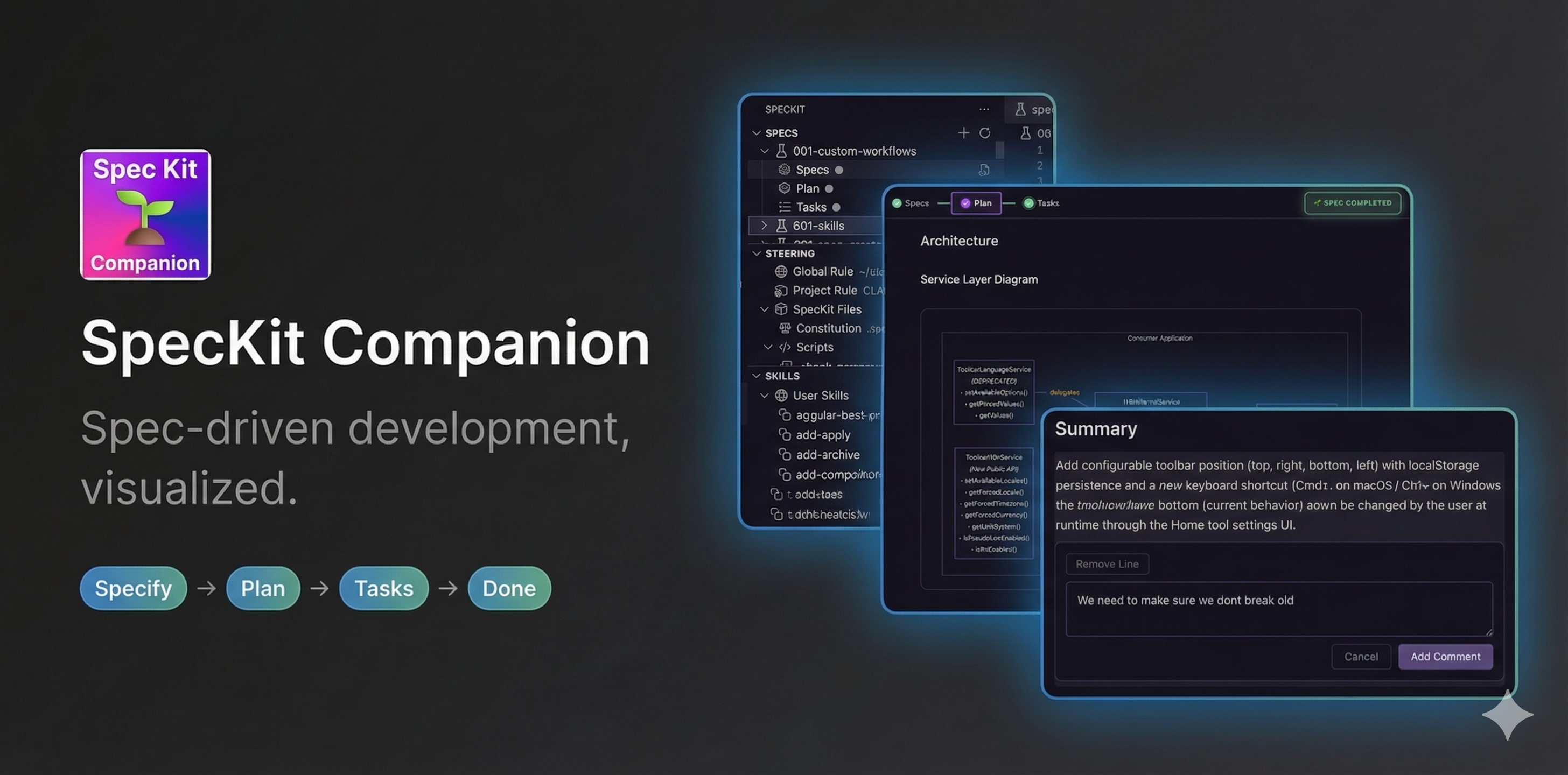
- Define requirements with structured specs
- Track progress through Specify → Plan → Tasks → Done
- Review with inline comments, just like a code review
- Extend with custom workflows, commands, and any AI assistant
Features
Visual Workflow Editor
Guide your features through structured phases with a dedicated editor that renders markdown specs, shows phase progress, and provides one-click actions for each step.
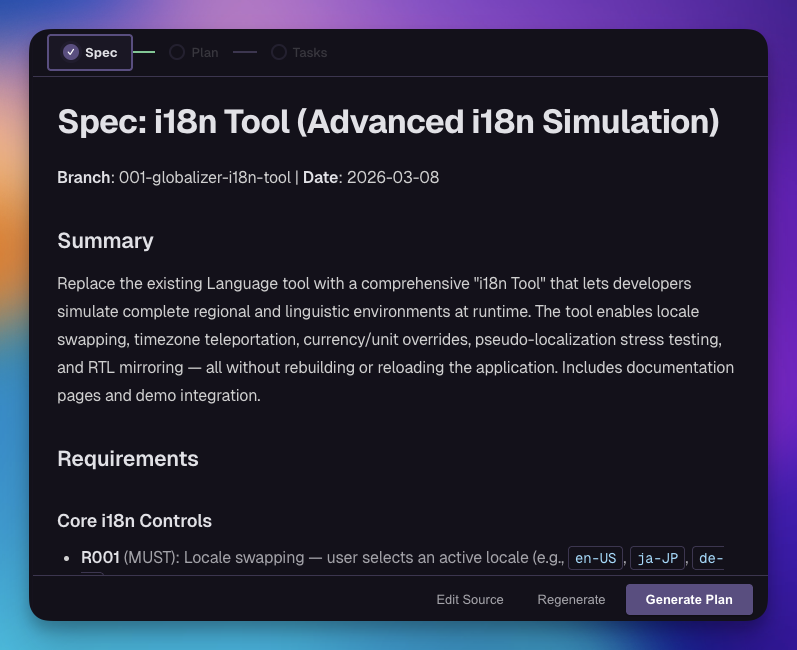
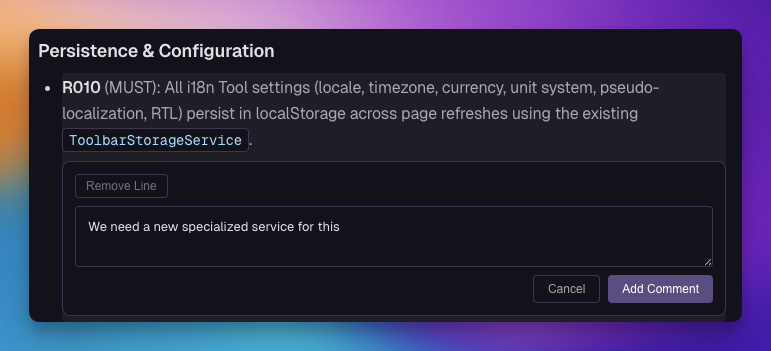
Inline Review Comments
Review spec documents with inline comments. Add feedback directly on specific lines, refine requirements, and collaborate on specs before implementation begins.
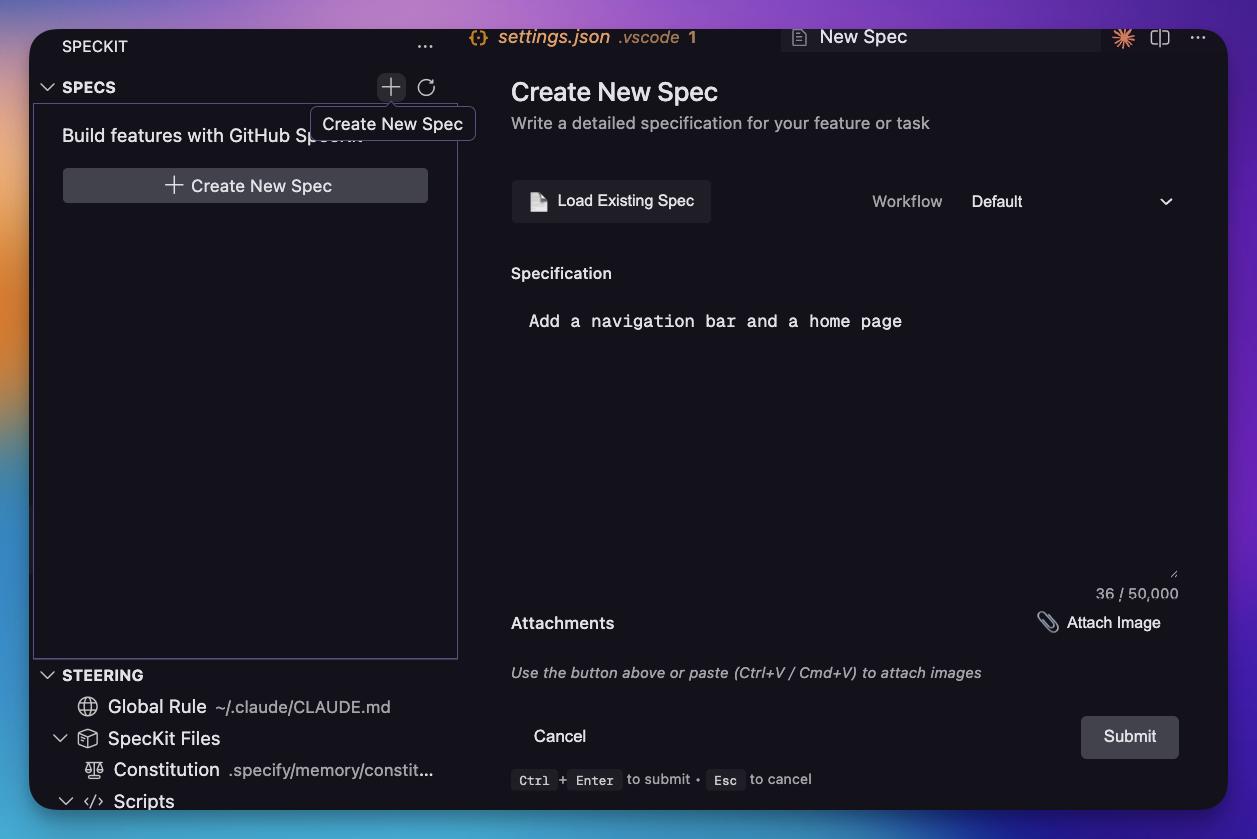
Create Specs Visually
Create new specs with a dedicated dialog — write a detailed description, select your workflow, and attach screenshots or mockups for context.
Spec-Driven Phases
Each feature flows through four phases:
Specify — Define requirements with user stories and acceptance scenarios.
Plan — Create the technical design with research, data models, and implementation strategy.
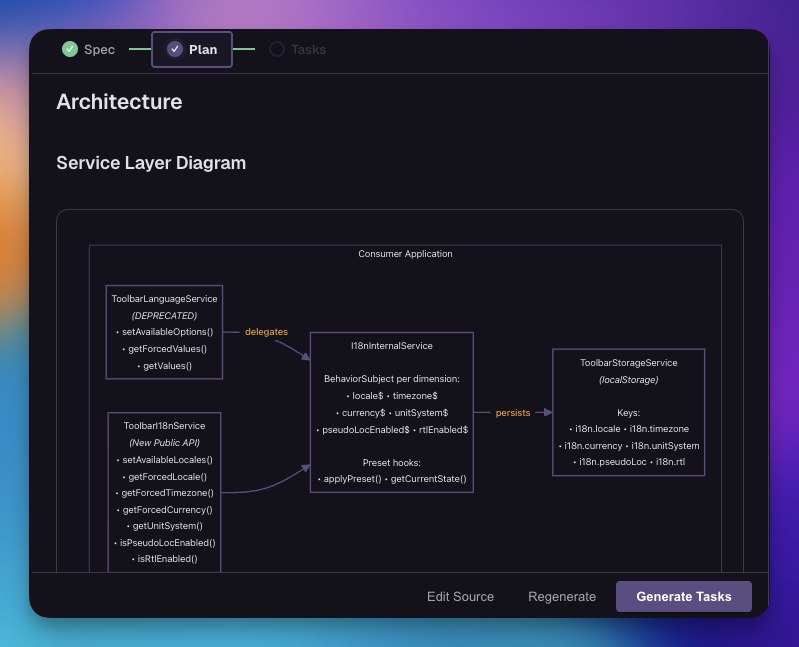
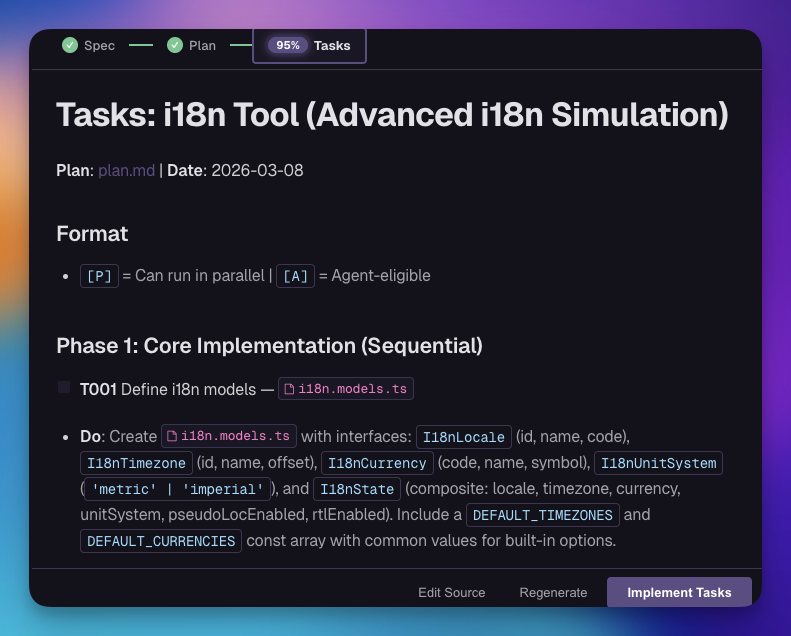
Tasks — Generate an implementation checklist with progress tracking and parallel execution markers.
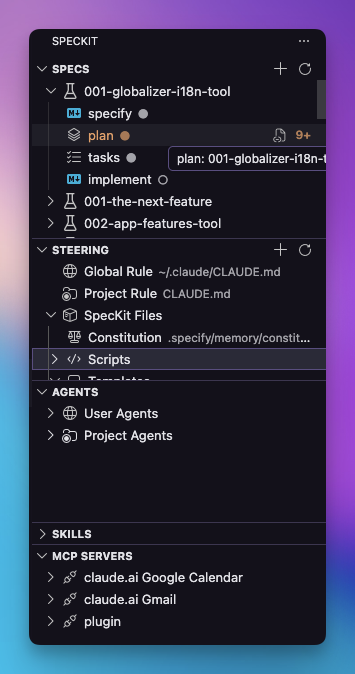
Sidebar at a Glance
The sidebar organizes everything your AI assistant needs: Specs for feature development, Steering for AI guidance documents, Agents for custom agent definitions, Skills for reusable capabilities, and Hooks for automation triggers.
Custom Workflows & Commands
SpecKit Companion isn't tied to a single methodology. Swap out the default phases for any SDD workflow — Agent Teams Lite, your own team's process, or anything that uses commands and produces markdown files. Define custom steps, labels, output files, and sub-documents. Add custom commands that appear as action buttons in specific phases (e.g., Verify, Archive, Commit, Create PR).
The sidebar, progress tracking, and workflow editor all adapt automatically to your custom workflow. See Configuration below.
Getting Started
- Install the extension from a
.vsixfile or the VS Code marketplace - Open the sidebar — click the SpecKit icon in the activity bar
- Create a spec — click the
+button in the Specs view to start your first feature
Supported AI Providers
| Feature | Claude Code | GitHub Copilot CLI | Gemini CLI | Codex CLI |
|---|---|---|---|---|
| Steering File | CLAUDE.md | .github/copilot-instructions.md | GEMINI.md | .codex/AGENTS.md |
| Steering Path | .claude/steering/ | .github/instructions/*.instructions.md | Hierarchical GEMINI.md | .codex/ |
| Agents | .claude/agents/*.md | .github/agents/*.agent.md | Limited support | .codex/agents/*.md |
| Hooks | .claude/settings.json | Not supported | Not supported | Not supported |
| MCP Servers | .claude/settings.json | ~/.copilot/mcp-config.json | ~/.gemini/settings.json | Not supported |
| CLI Command | claude |
ghcs / gh copilot |
gemini |
codex |
Configure your preferred provider: Settings > speckit.aiProvider
Configuration
Spec Directories
By default, specs live in specs/. You can configure multiple directories or use glob patterns:
{
  "speckit.specDirectories": ["specs", "openspec/changes/*"]
}
Simple names (e.g., specs) list their children as specs. Patterns with wildcards treat each match as a spec folder.
Custom Workflows
Define alternative workflows with custom steps, output files, and sub-documents. Any SDD methodology that uses commands and produces markdown files can be plugged into SpecKit Companion.
Real-world example — Agent Teams Lite
Here's a full configuration using Agent Teams Lite, a multi-agent SDD framework:
{
  "speckit.customWorkflows": [
    {
      "name": "agent-teams-lite",
      "displayName": "Agent Teams Lite (SDD)",
      "description": "Multi-agent SDD workflow",
      "steps": [
        { "name": "specify", "label": "Spec",   "command": "sdd-spec",   "file": "spec.md", "subDir": "specs" },
        { "name": "plan",    "label": "Design", "command": "sdd-design", "file": "design.md", "includeRelatedDocs": true },
        { "name": "tasks",   "label": "Tasks",  "command": "sdd-tasks",  "file": "tasks.md" }
      ]
    }
  ],
  "speckit.specDirectories": ["specs", "openspec/changes/*", "openspec/changes/archive/*"],
  "speckit.customCommands": [
    { "name": "verify",  "title": "Verify",  "command": "/sdd-verify",  "step": "tasks", "tooltip": "Validate implementation matches specs" },
    { "name": "archive", "title": "Archive", "command": "/sdd-archive", "step": "tasks", "tooltip": "Archive completed change" }
  ]
}
Notice how custom workflows, spec directories, and custom commands work together:
- The workflow defines Spec → Design → Tasks phases with custom labels and commands
specDirectoriestells the sidebar where to find specs (including archived ones)- Custom commands add Verify and Archive buttons to the Tasks phase
Basic example — remap default steps
{
  "speckit.customWorkflows": [
    {
      "name": "sdd",
      "displayName": "SDD Workflow",
      "steps": [
        { "name": "specify",   "label": "Specify",   "command": "sdd.specify",   "file": "spec.md" },
        { "name": "plan",      "label": "Plan",      "command": "sdd.plan",      "file": "plan.md" },
        { "name": "tasks",     "label": "Tasks",     "command": "sdd.tasks",     "file": "tasks.md" },
        { "name": "implement", "label": "Implement", "command": "sdd.implement", "actionOnly": true }
      ],
      "commands": [
        {
          "name": "auto",
          "title": "Auto Mode",
          "command": "sdd:auto",
          "step": "specify",
          "tooltip": "Goes through the whole specification in auto mode"
        }
      ]
    }
  ]
}
Workflow Commands
Workflows can define commands — extra action buttons that appear next to the primary action for a given step. For example, a command with "step": "specify" renders as a button next to Submit in the spec editor.
{
  "commands": [
    {
      "name": "auto",
      "title": "Auto Mode",
      "command": "sdd:auto",
      "step": "specify",
      "tooltip": "Runs the full pipeline automatically"
    }
  ]
}
| Property | Required | Description |
|---|---|---|
name |
Yes | Unique command identifier |
command |
Yes | Command to execute (e.g., "sdd:auto" — no leading slash needed) |
step |
Yes | Which workflow step to show this button on (e.g., "specify") |
title |
No | Button label (defaults to name) |
tooltip |
No | Hover text for the button |
Commands with step: "specify" appear as secondary buttons next to Submit in the spec creation dialog. Multiple commands per step are supported.
Steps with sub-files
Steps can declare child documents that appear as expandable items in the sidebar:
{
  "steps": [
    {
      "name": "plan",
      "label": "Plan",
      "command": "speckit.plan",
      "file": "plan.md",
      "subDir": "plan"
    }
  ]
}
This scans plan/ for .md files and shows them as children of the Plan step. You can also use an explicit list:
{
  "subFiles": ["plan/architecture.md", "plan/api-design.md"]
}
Step Properties
| Property | Required | Description |
|---|---|---|
name |
Yes | Step identifier (e.g., "specify", "design") |
command |
Yes | Slash command to execute (e.g., "sdd.specify") |
label |
No | Display name in sidebar (defaults to capitalized name) |
file |
No | Output file for this step (defaults to {name}.md) |
actionOnly |
No | When true, the step has no output file and is hidden from the document tree (e.g., an "Implement" step that just runs a command) |
subFiles |
No | Array of child file paths shown under this step |
subDir |
No | Directory to scan for child .md files (non-recursive) |
includeRelatedDocs |
No | When true, unassigned .md files in the spec folder are grouped under this step. Only one step should have this flag. |
Behavior
- The sidebar shows only the steps declared by the active workflow
- Steps with missing output files appear as "not started"
- Steps with
actionOnly: trueare action-only — they appear in the workflow editor but not in the file tree - When multiple workflows exist, you're prompted to choose when starting a new spec
- The default workflow (
spec.md→plan.md→tasks.md→ implement) is always available
Custom Commands
Add custom slash commands that appear in the workflow editor and the SpecKit: Run Custom Command picker.
{
  "speckit.customCommands": [
    "review",
    {
      "name": "commit",
      "title": "Commit Changes",
      "command": "/speckit.commit",
      "step": "tasks",
      "tooltip": "Generate a commit for completed work",
      "requiresSpecDir": false
    },
    {
      "name": "pr",
      "title": "Create PR",
      "command": "/speckit.pr",
      "step": "tasks",
      "tooltip": "Create a pull request for the feature"
    }
  ]
}
Properties:
name— Command identifiertitle— Display name in pickercommand— Slash command to executestep— Phase to show in:spec,plan,tasks, orall(default)tooltip— Description shown on hoverautoExecute— Auto-run in terminal (default: true)requiresSpecDir— Inject spec directory (default: true)
Development
Setup
git clone https://github.com/alfredoperez/speckit-companion.git
cd speckit-companion
npm install
npm run compile
Running
- Open the project in VS Code
- Press
F5to launch Extension Development Host
Building
npm run package
# Output: speckit-companion-{version}.vsix
Platform Support
| Platform | Support | Notes |
|---|---|---|
| macOS | Yes | Fully supported |
| Linux | Yes | Fully supported |
| Windows WSL | Yes | Supported |
| Windows | No | Not supported |
Acknowledgments
This project started from the amazing work at https://github.com/notdp/kiro-for-cc
License
MIT License
Yorumlar (0)
Yorum birakmak icin giris yap.
Yorum birakSonuc bulunamadi